

Getting started #
Note : This Layout Pack Only Work with Divi 5. It is not working with Divi 4. #
In order to install this section layouts pack, you must have Divi Theme if you don't have then first purchase a membership to Elegant Themes and download the Divi Theme and activate. The Divi Theme is NOT included with this layouts pack.
Steps for import layouts pack #
Step 1 #
Download Main Product Zip and Supplementary Zip Files and then Unzip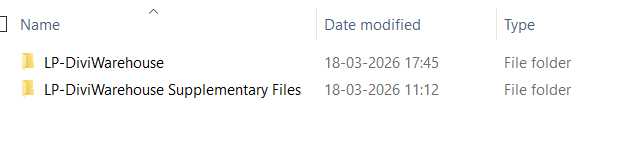
After unzip Main Product Zip Folder (Folder - LP-DiviWarehouse)
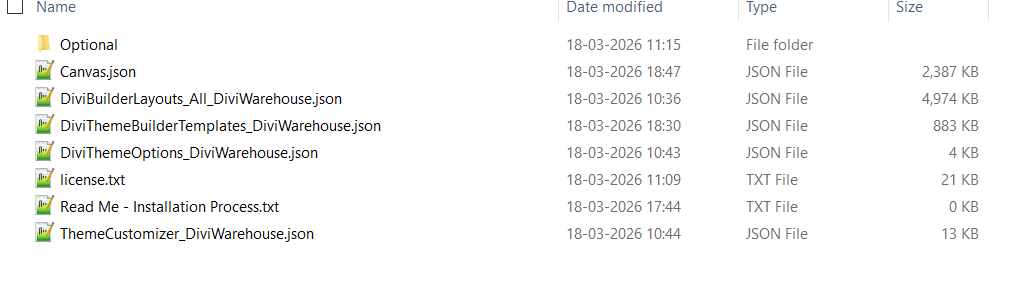
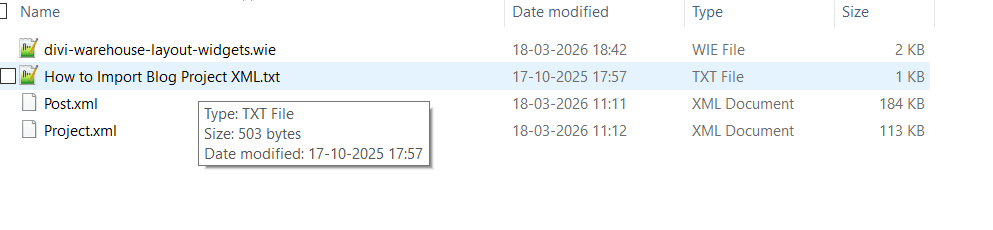
After unzip Supplementary Product Zip Folder (Folder - LP-DiviWarehouse Supplementary Files)
Step 2 #
How to Download Divi 5?
Login into https://www.elegantthemes.com/members-area/login/
Once Login then browse https://www.elegantthemes.com/members-area/divi-5/
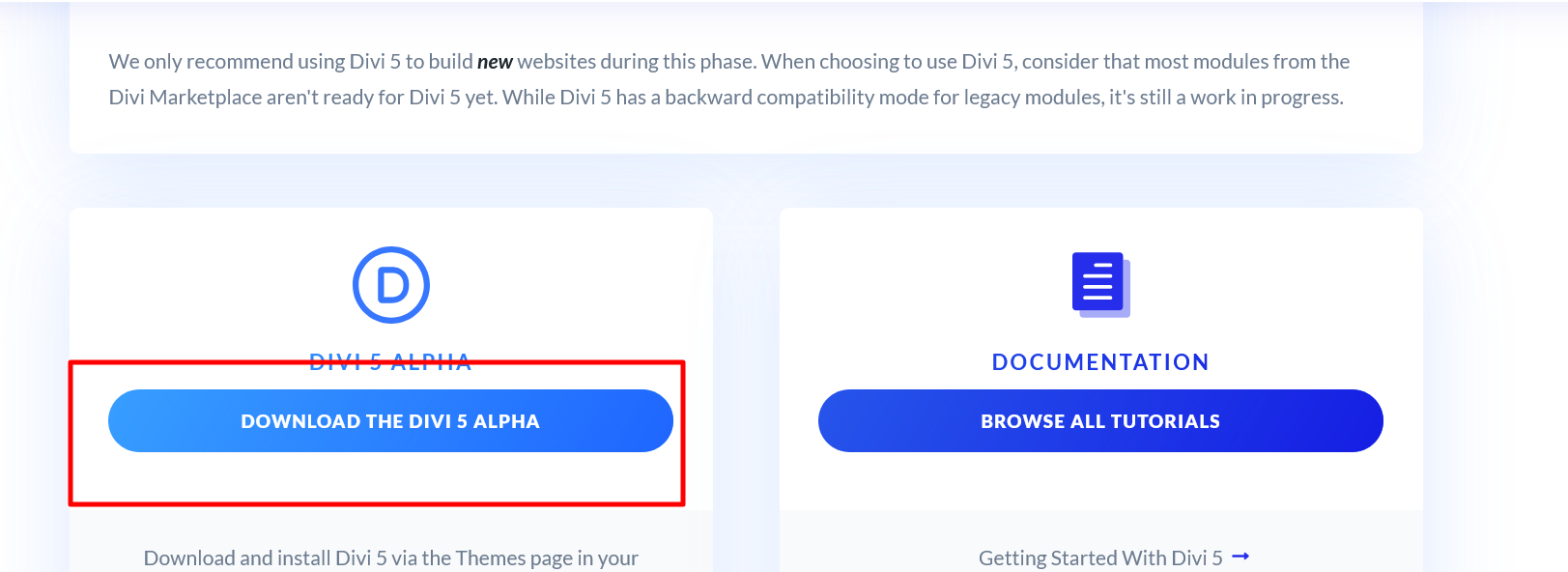
Go to Themes and Upload Divi 5 Theme and Activate that theme
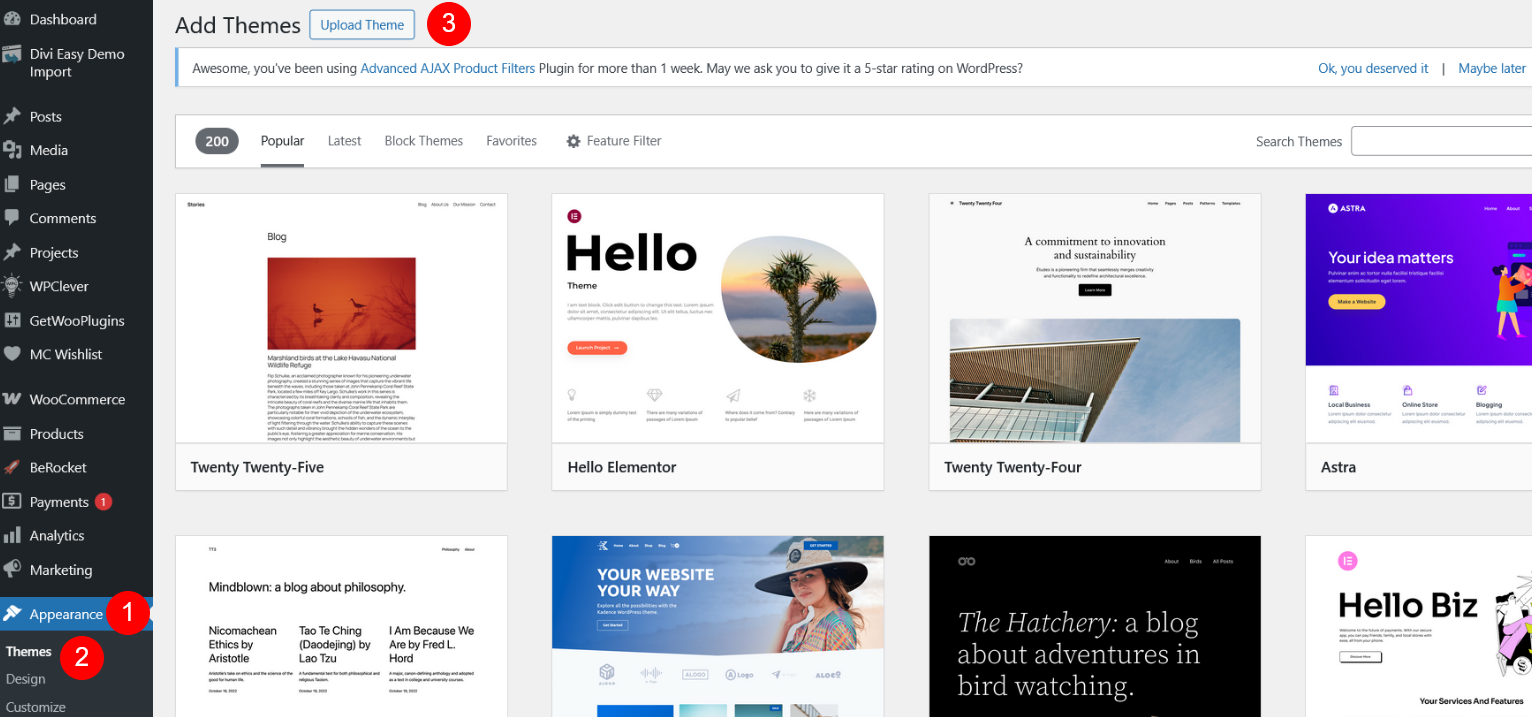
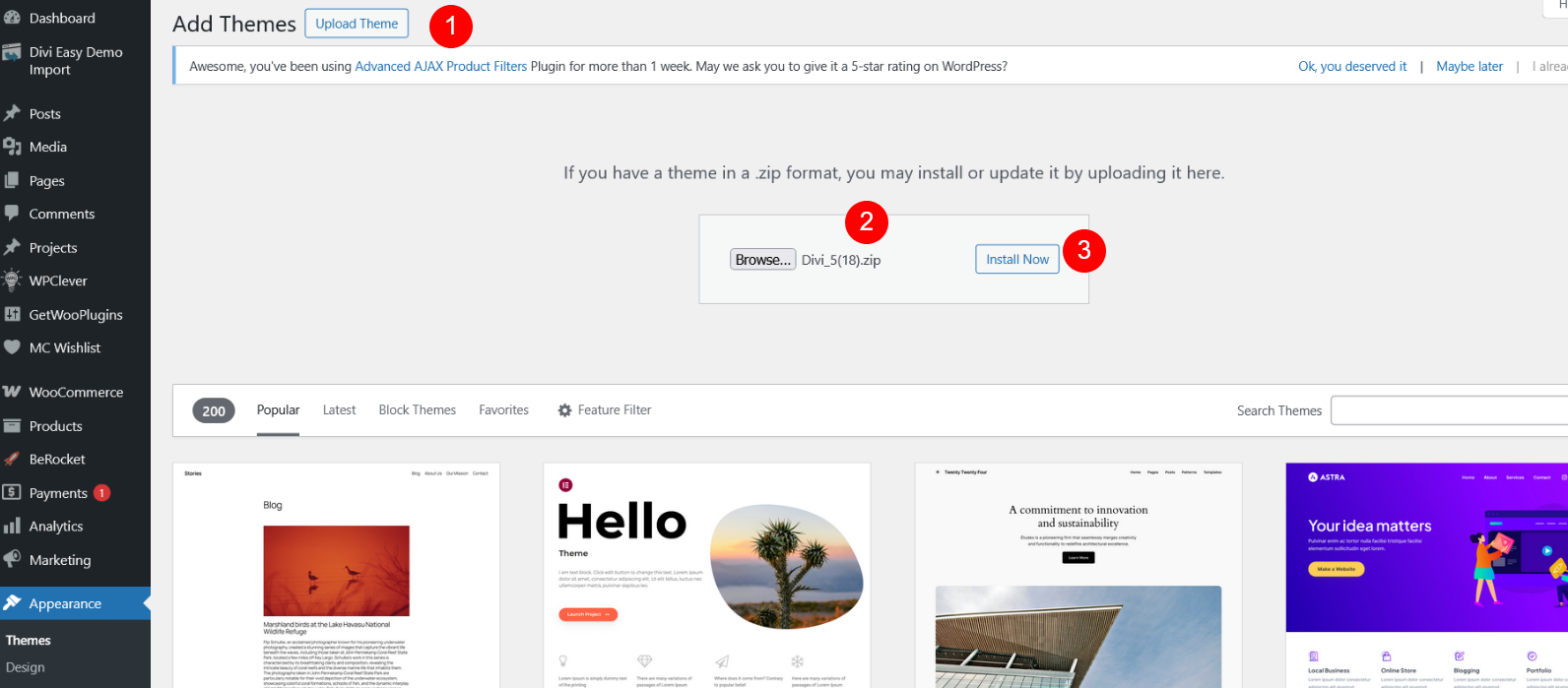
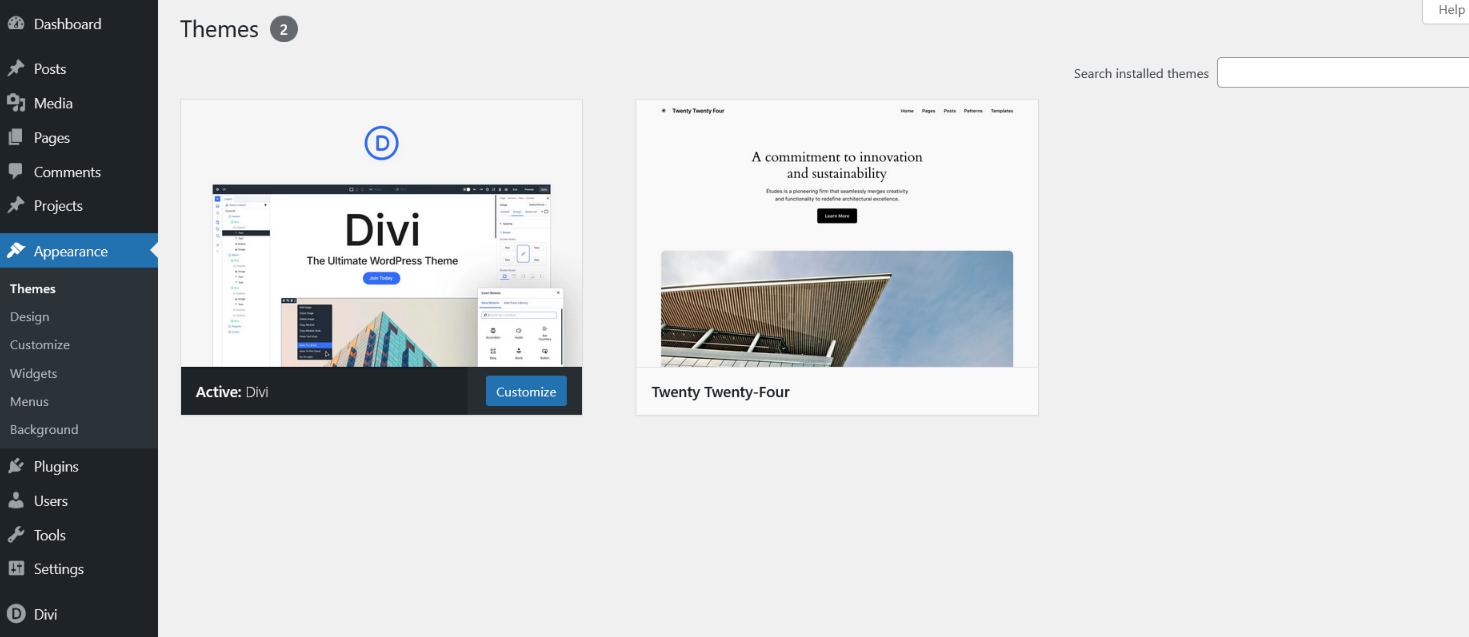
Set Permalink "Post Name"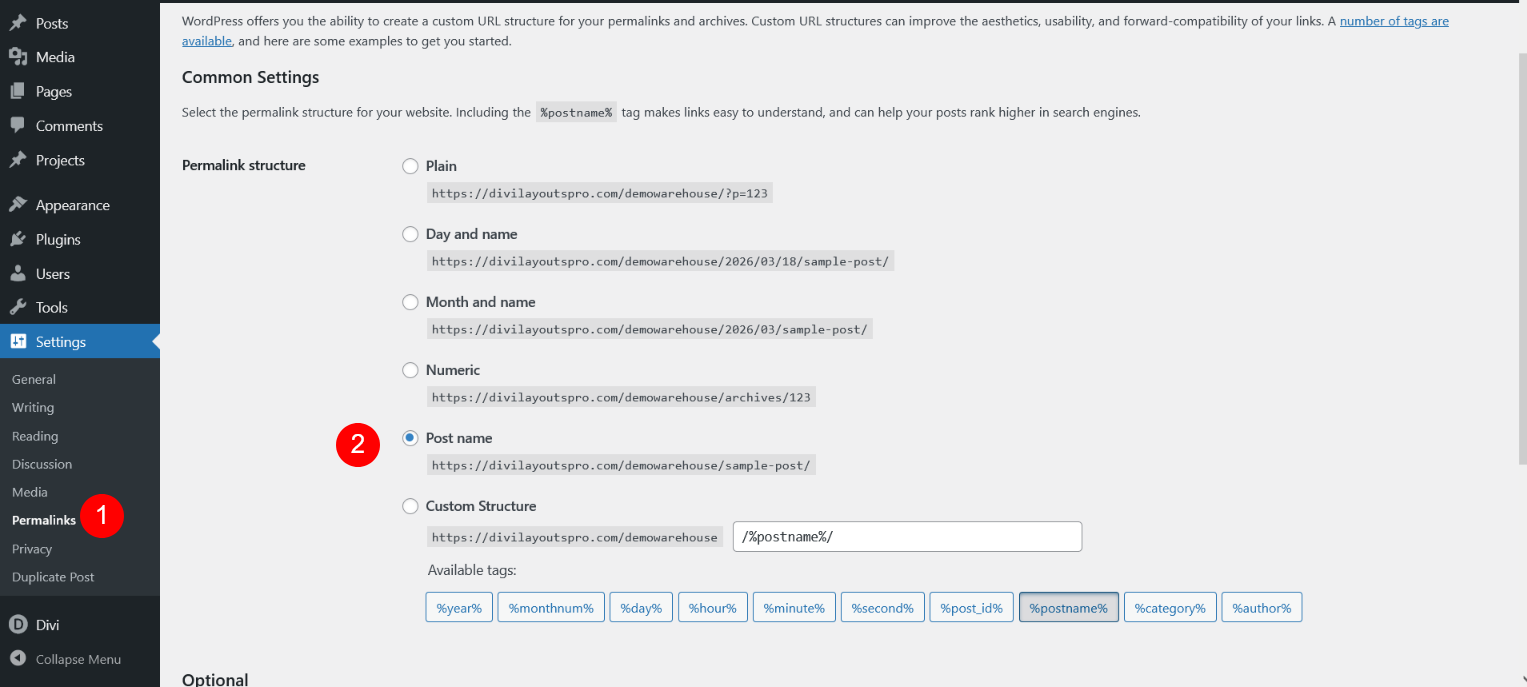
Step 3 #
Import Post and Project XML files
Go to Supplementary Folder and see both files
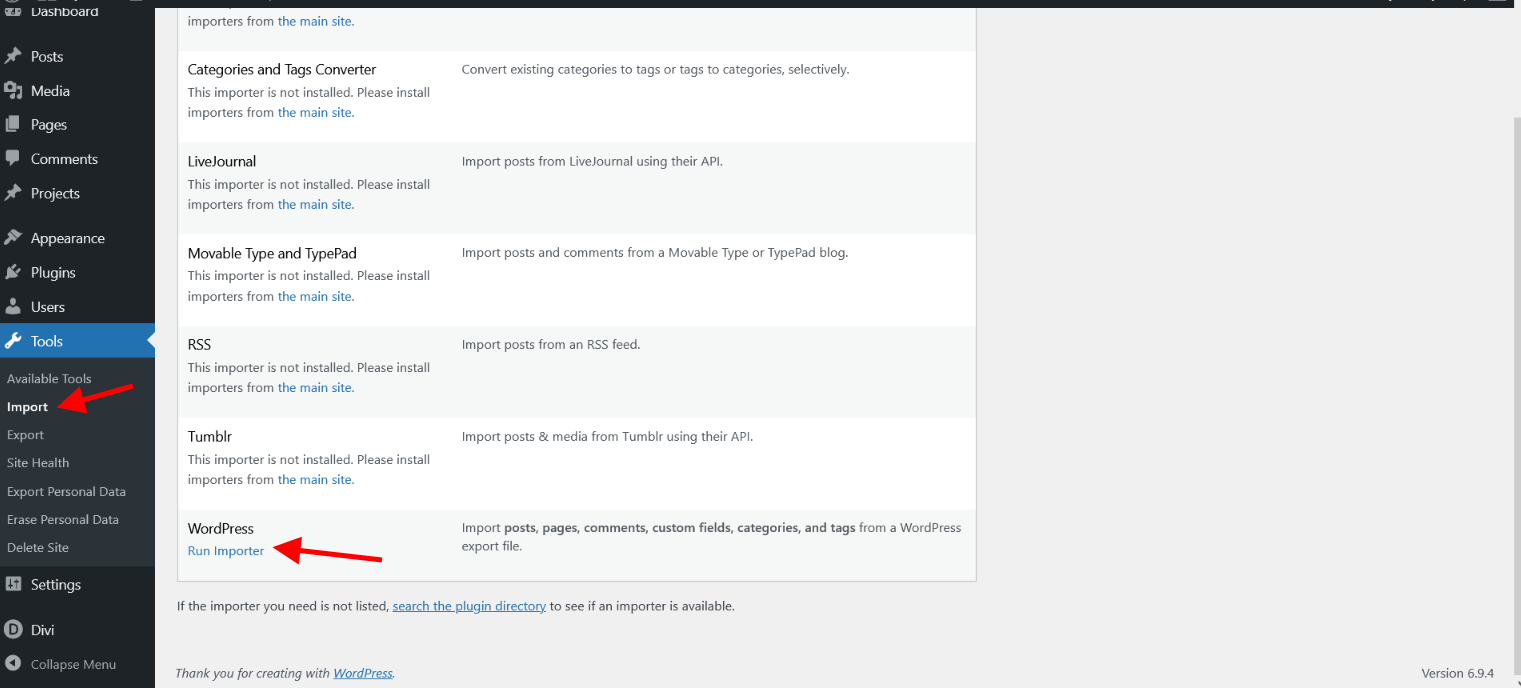
Go to Tools -> Import
Then See [ WordPress-Install Now ]
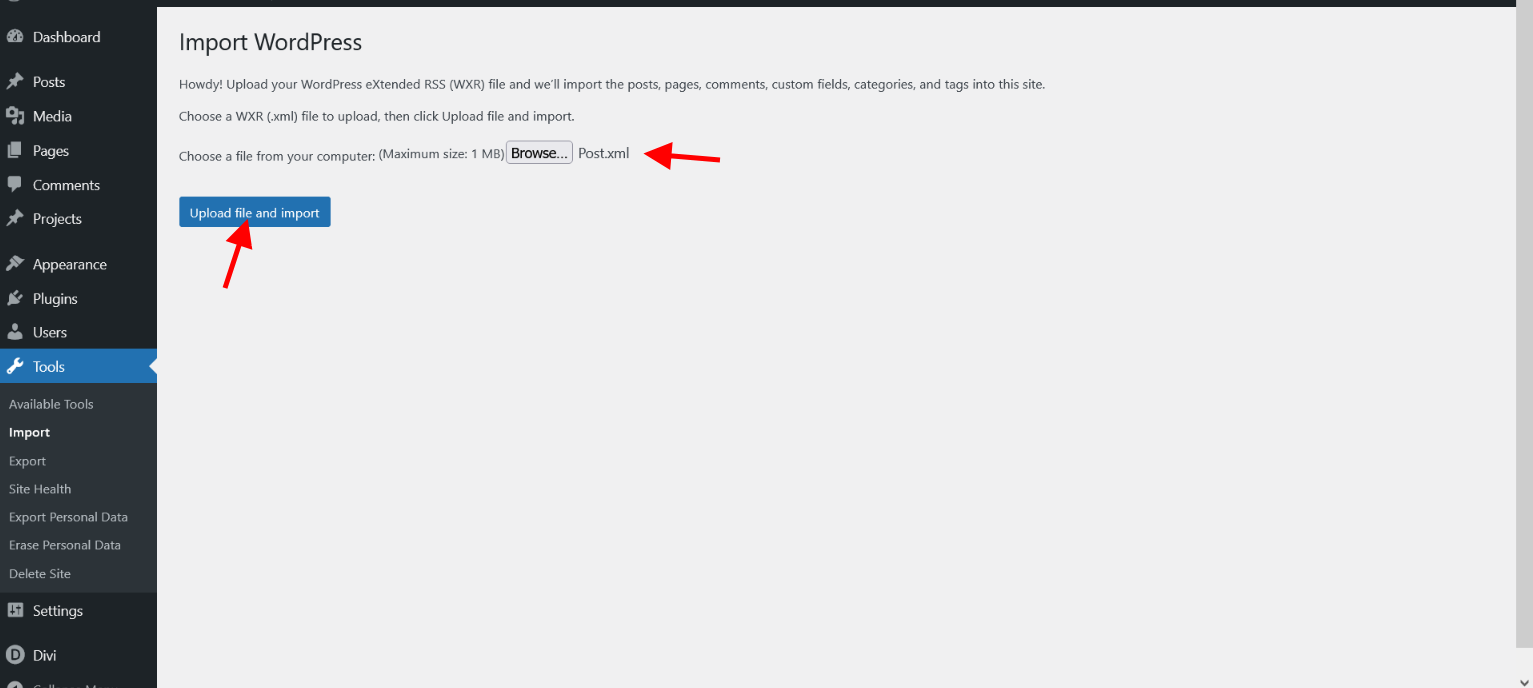
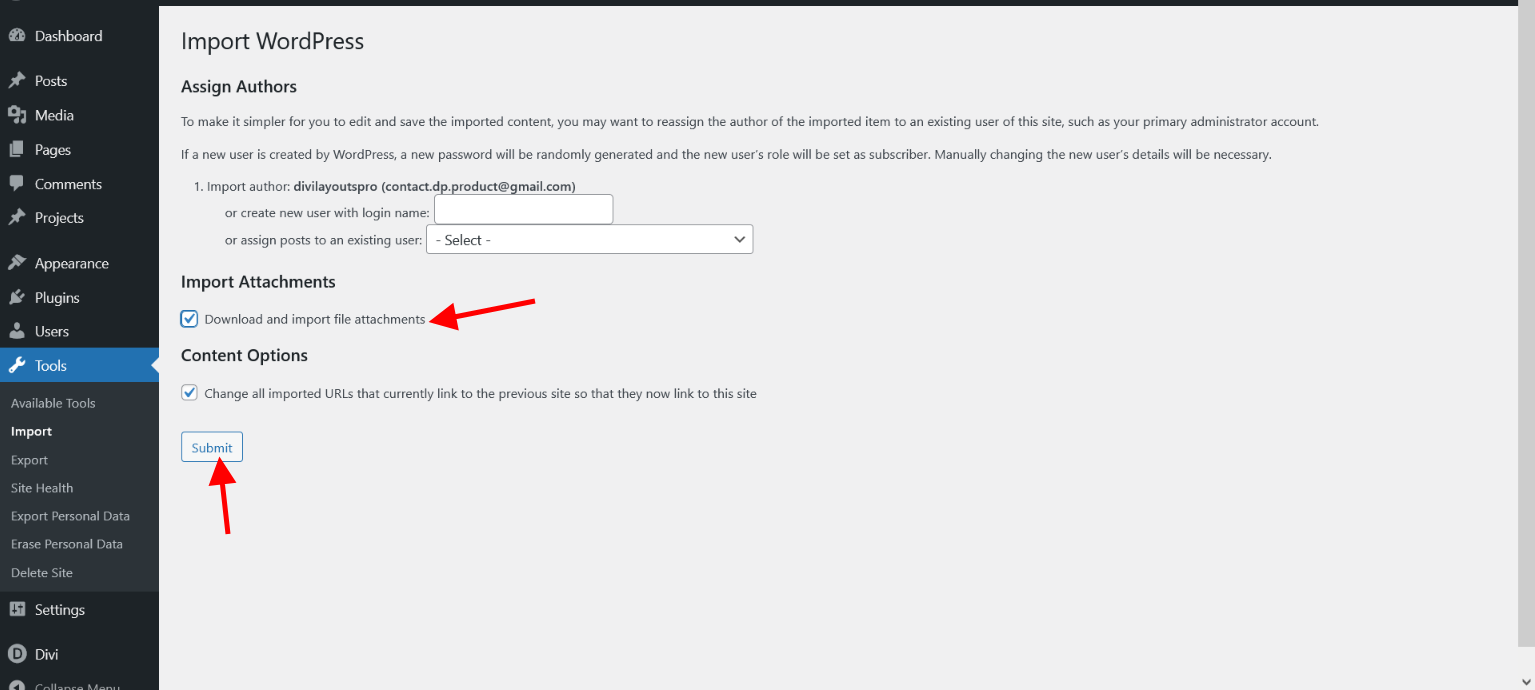
Once Install You can see [ WordPress - Run Importer ] and Click on Run Importer and Select xml file.
1. Post.xml
2. Project.xml
Step 4 #
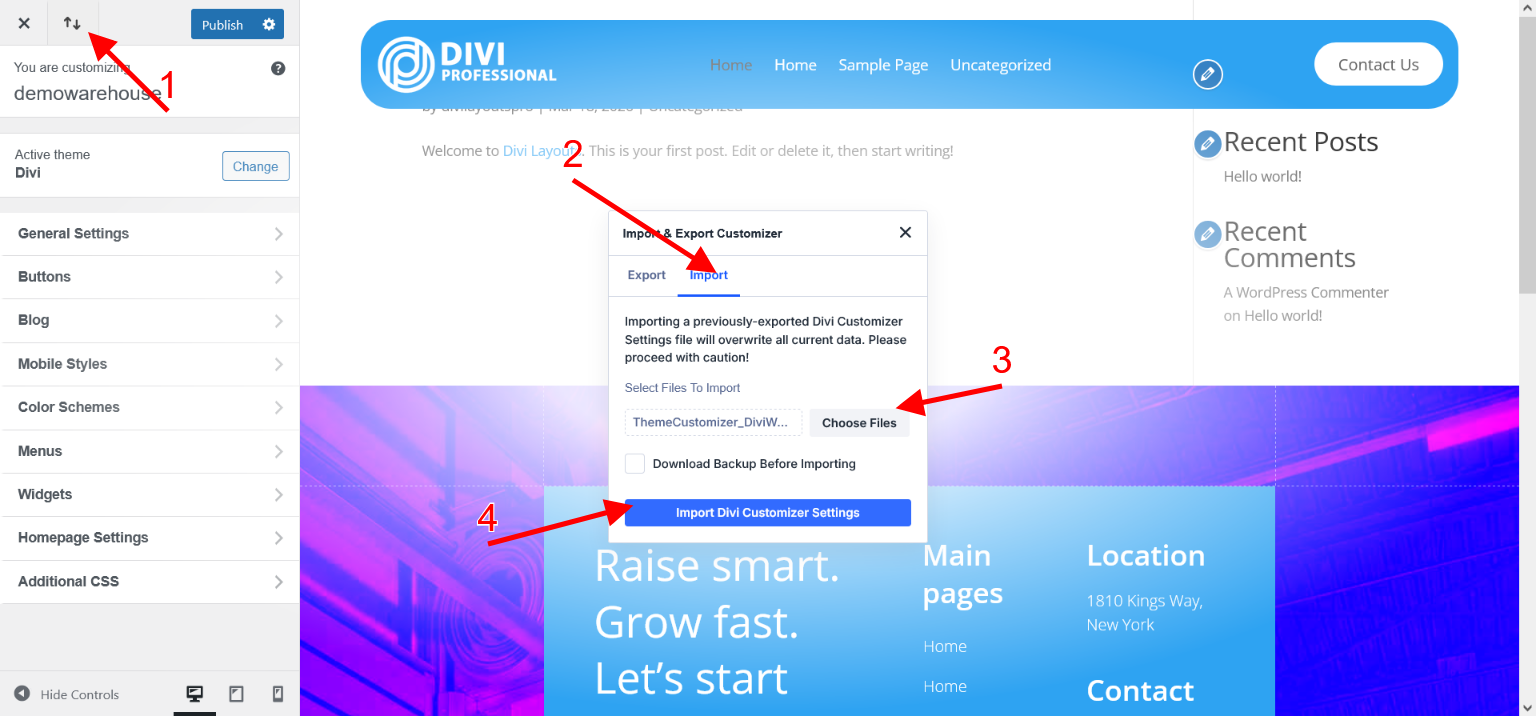
Import Theme Option and Theme Customizer JSON files
Go to Main Product Folder and see both files
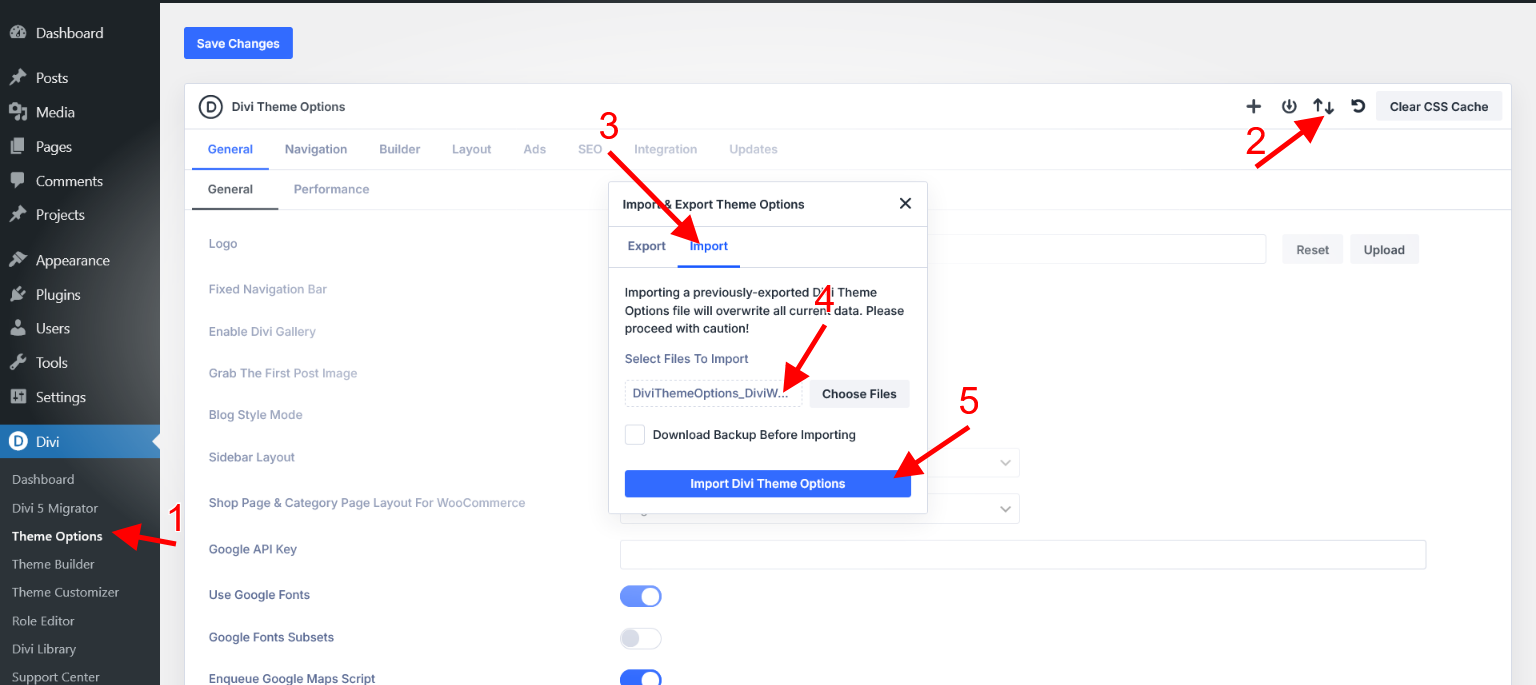
1. DiviThemeOptions_DiviWarehouse.json
2. ThemeCustomizer_DiviWarehouse.json
Go to Divi -> Divi Theme Option and see below image and import "DiviThemeOptions_DiviWarehouse.json"
Go to Divi -> Theme Customizer and see below image and import "ThemeCustomizer_DiviWarehouse.json"
Step 5 #
Import All Pages JSON file - DiviBuilderLayouts_All_DiviWarehouse.json and ALLPages.xml
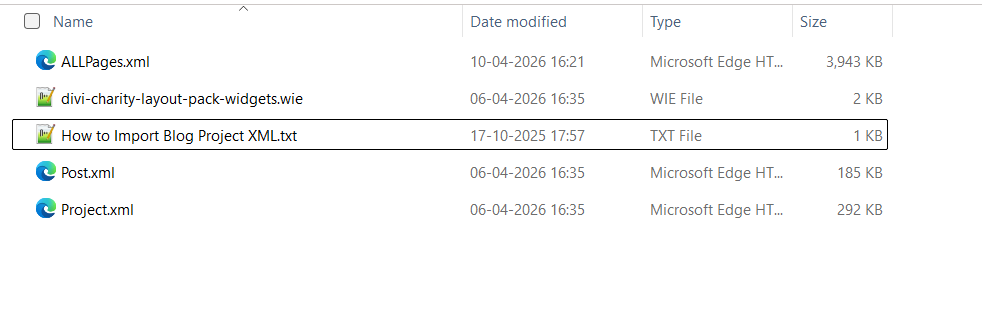
1. Import All Pages XML file - Go to Supplementary Files Folder and see ALLPages.xml
Go to Tools -> Import
Then See [ WordPress-Install Now ]
Once Install You can see [ WordPress - Run Importer ] and Click on Run Importer and Select xml file.
Go to Supplementary Folder and see ALLPages.xml file.
2. Go to Main Product Folder and see file
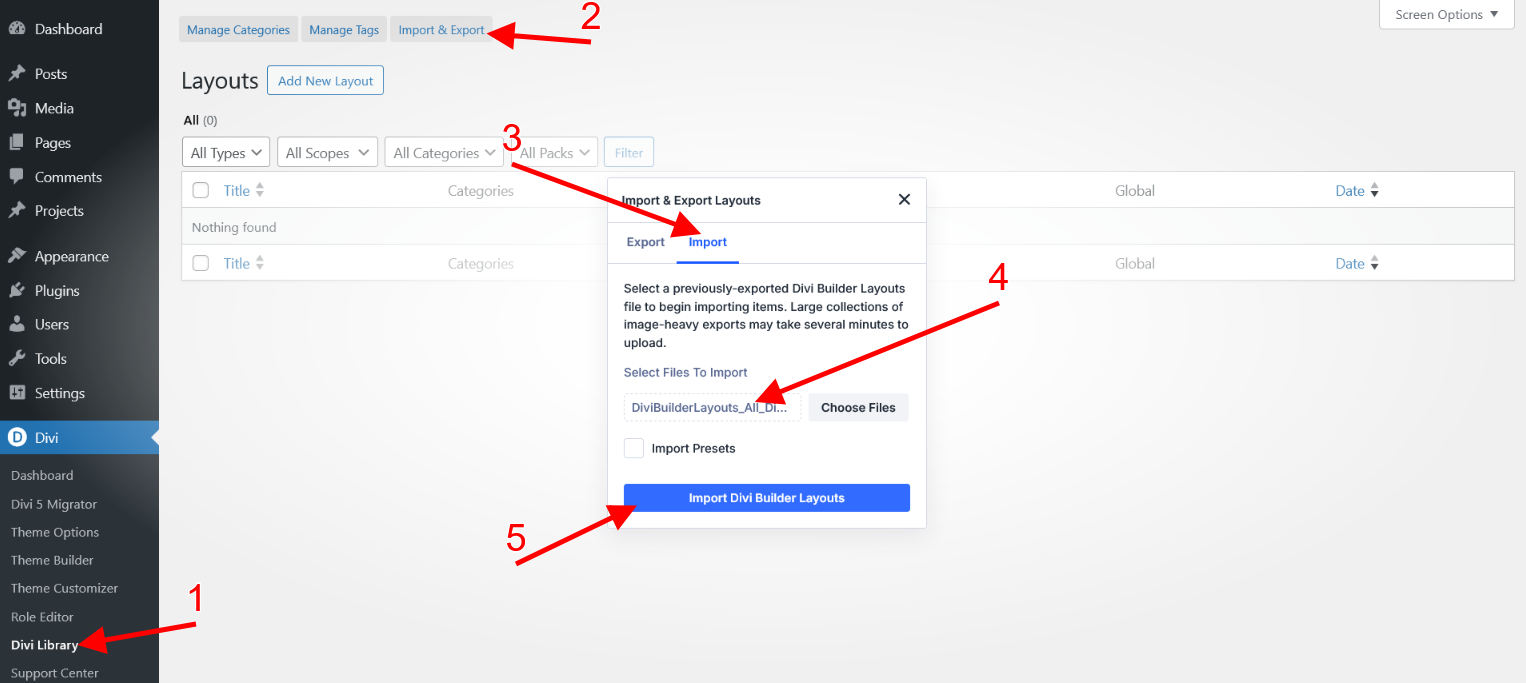
DiviBuilderLayouts_All_DiviWarehouse.json
Go to Divi -> Divi Library -> Click on "Import & Export" Button -> Select Import Tab -> Select Json file (e.g DiviBuilderLayouts_All_DiviWarehouse.json) -> Click on "Import Divi Builder Layouts" Button
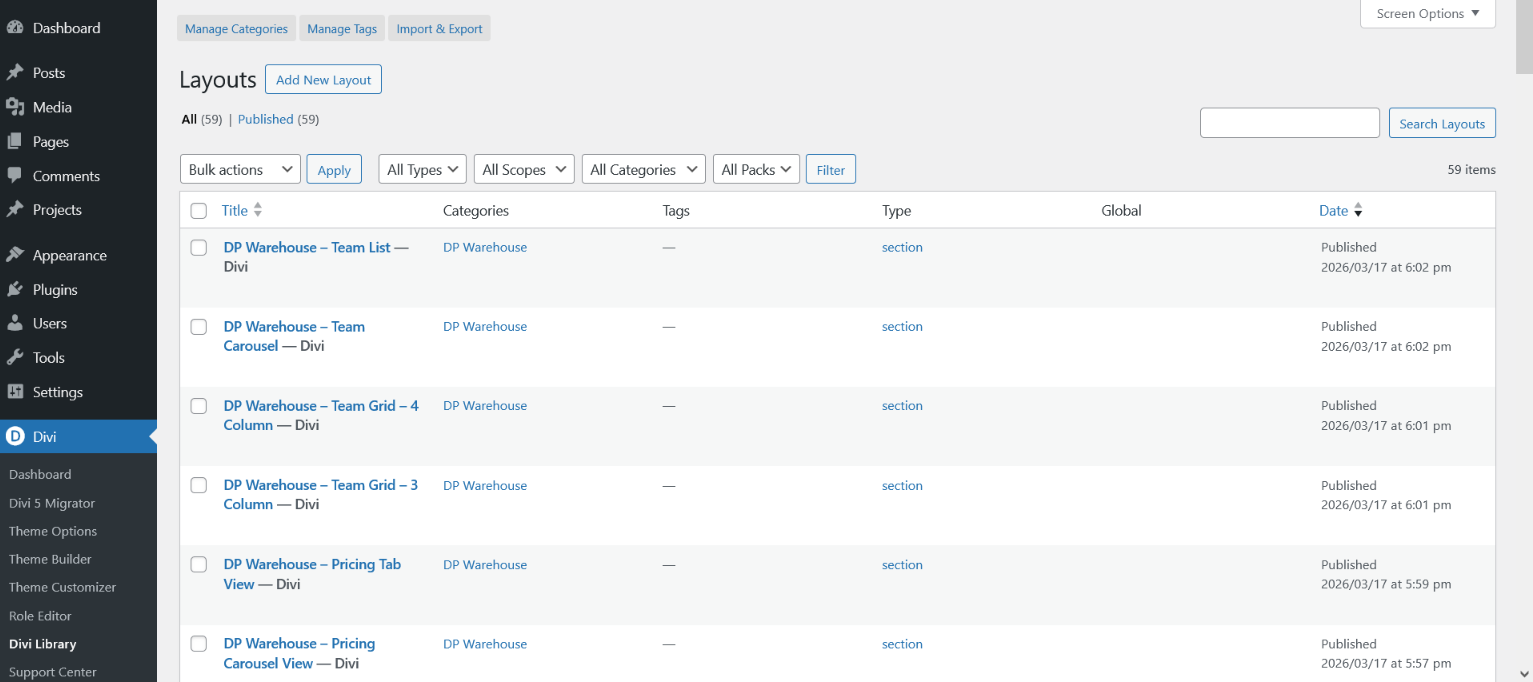
After Imported You can see all pages
This is Common Documentation settings for our all layouts
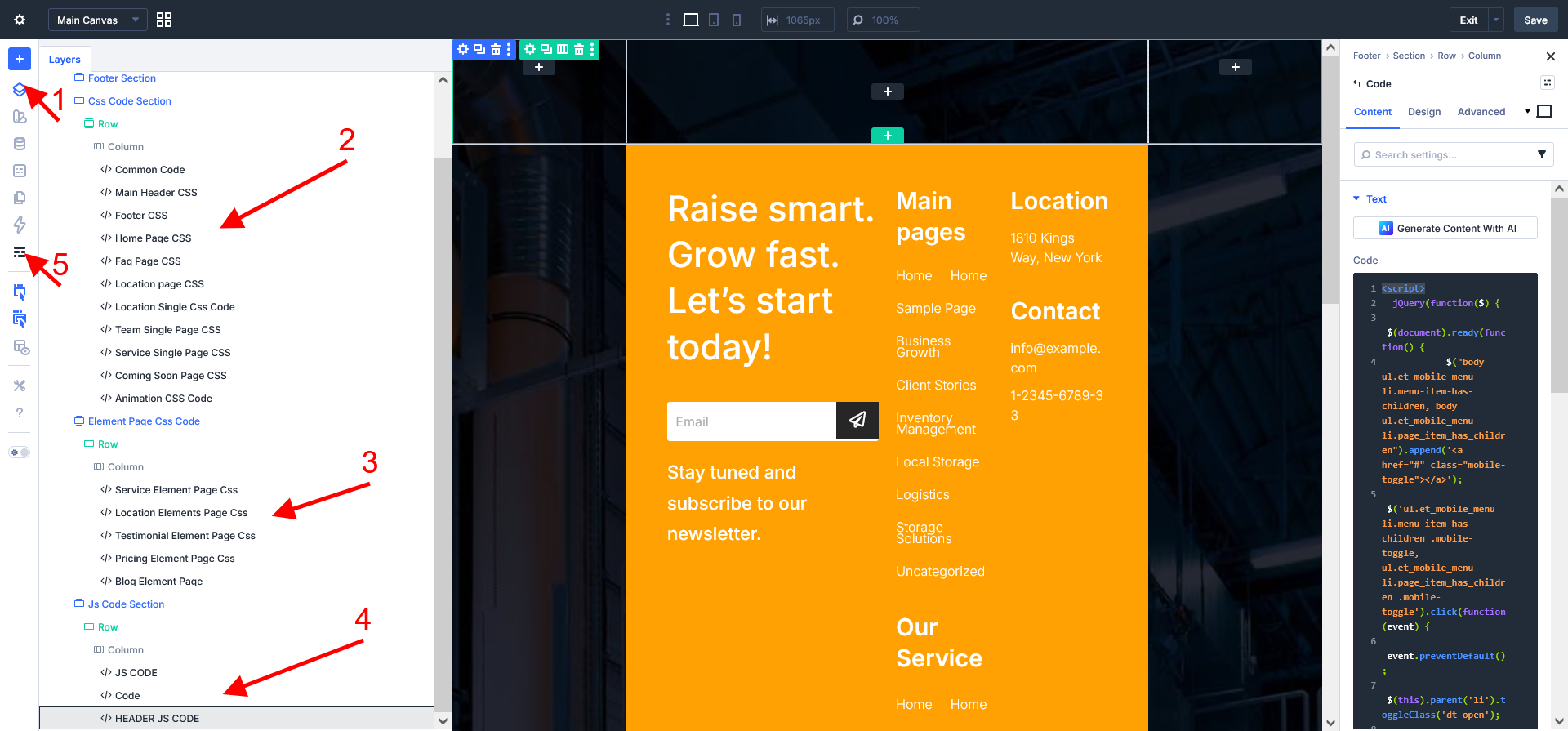
After Import Process ,Edit Any Divi Page and Must be enable below settings
For Breakpoints Please Enable Tablet Wide
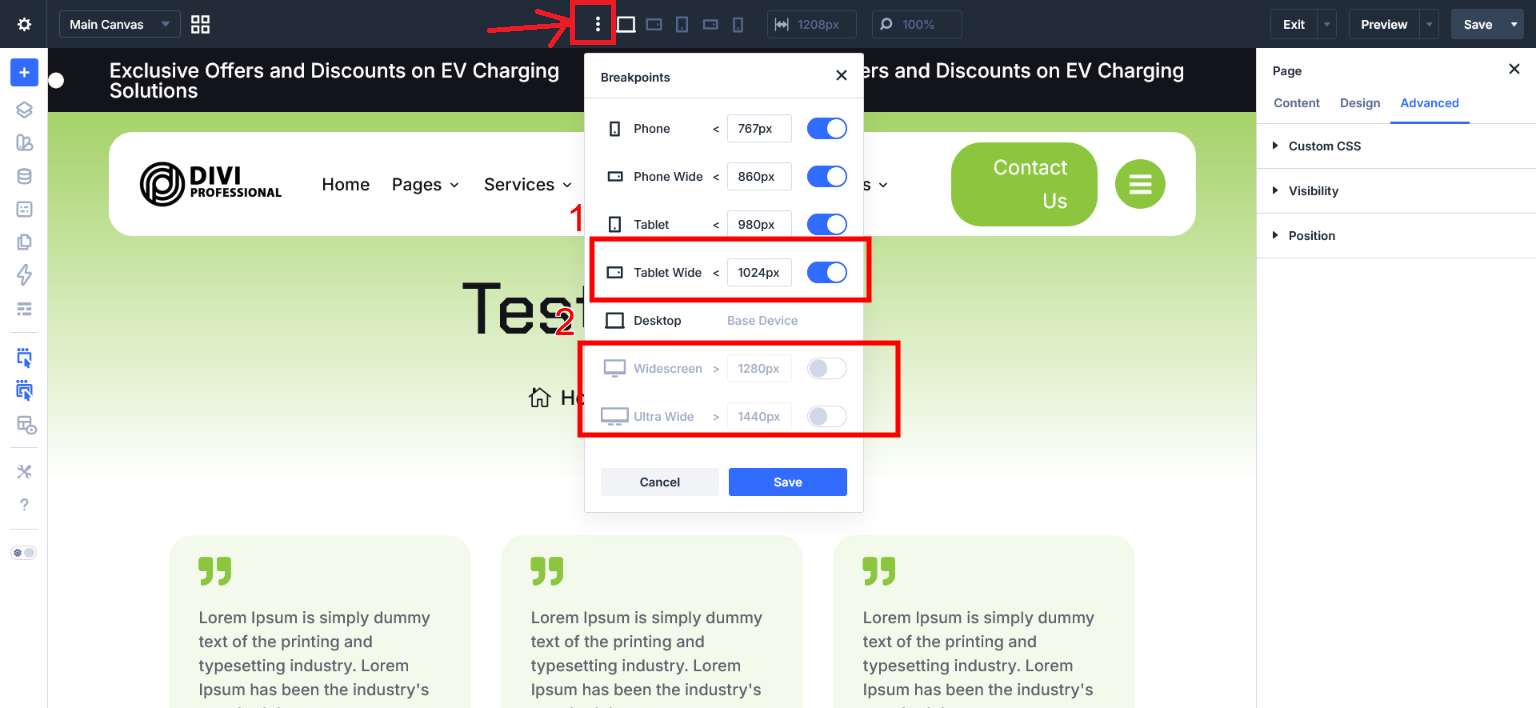
You can check Read Me - Installation Process.txt File Under Folder
Step 6 #
Import Theme Builder Pages JSON file - DiviThemeBuilderTemplates_DiviWarehouse.json
Go to Main Product Folder and see file
1. DiviThemeBuilderTemplates_DiviWarehouse.json
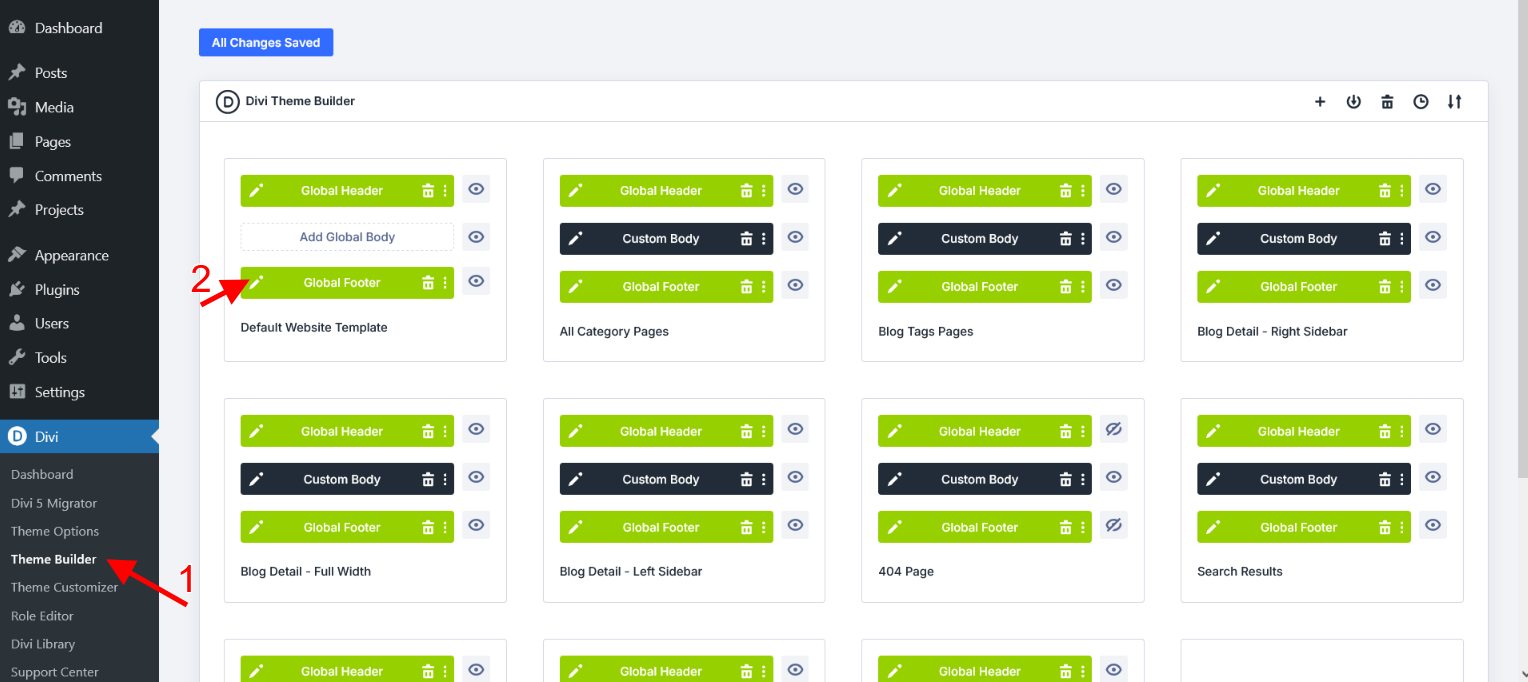
Go to Divi -> Theme Builder -> Click on "Import & Export" Icon -> Select Import Tab -> Select Json file (e.g DiviThemeBuilderTemplates_DiviWarehouse.json) -> Click on "Import Divi Theme Builder Templates" Button
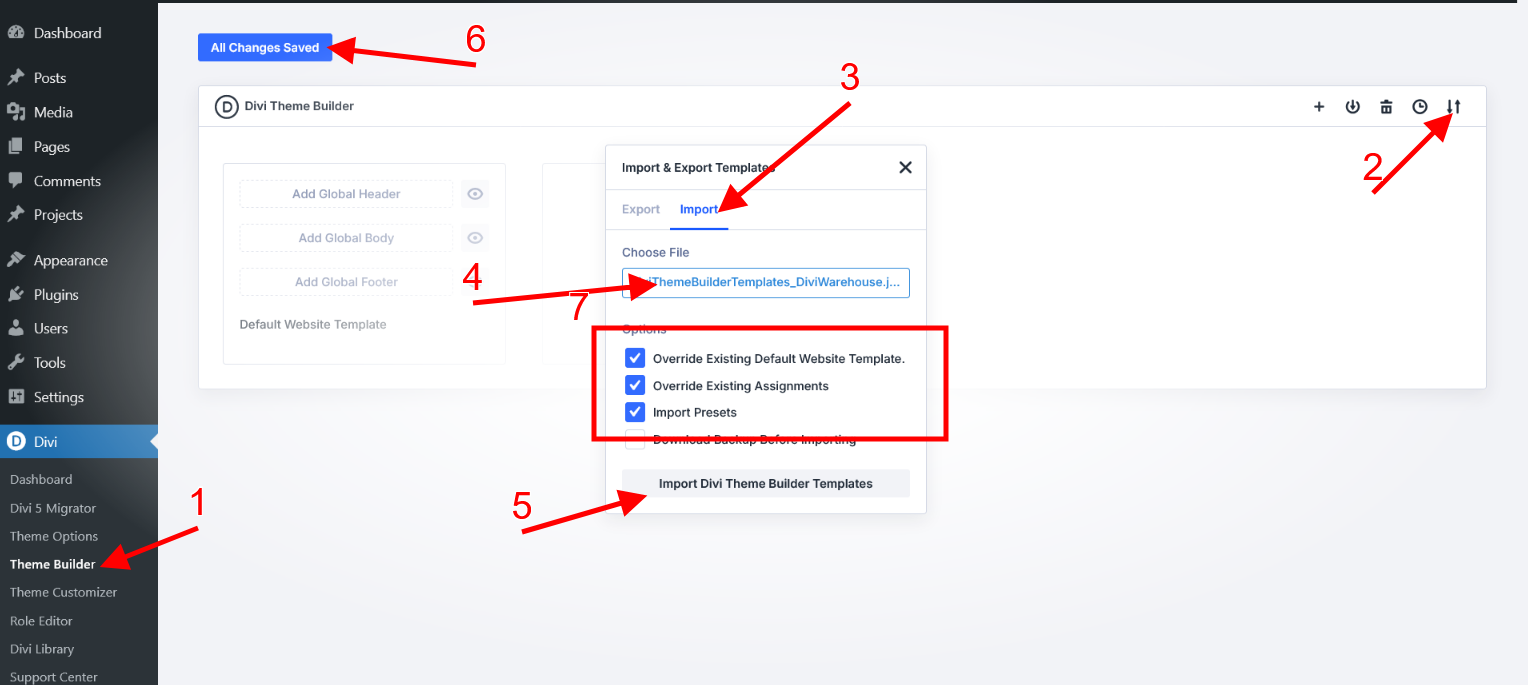
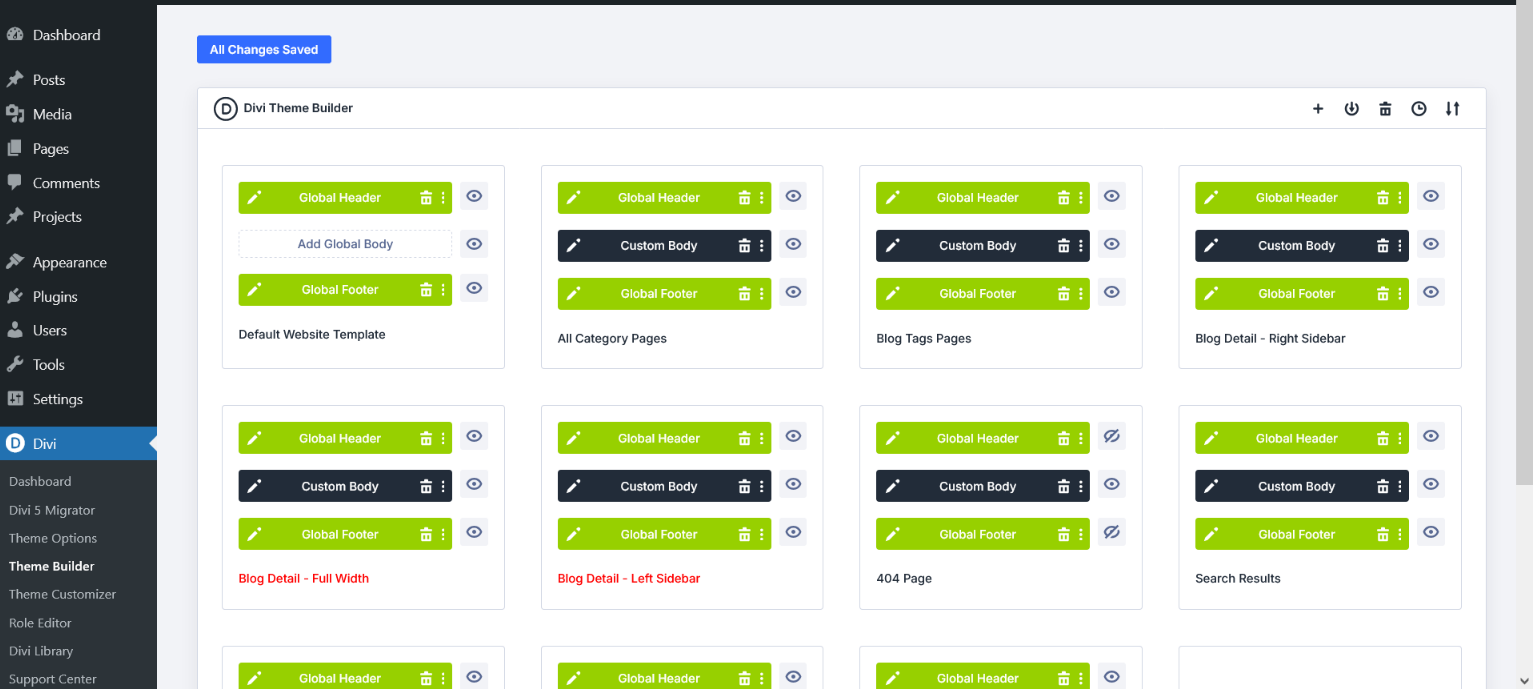
After Imported You can see all templates
Step 7 #
Import Widget File - divi-warehouse-layout-widgets.wie
Go to Supplementary Product Folder and see file
1. divi-warehouse-layout-widgets.wie
Please install "Widget Importer & Exporter" Plugin and activate
https://wordpress.org/plugins/widget-importer-exporter/
Now go to Appearance -> Wigdets and create "Widget Name"
Add "Widget Name" - "blog-sidebar "- Click on Create button
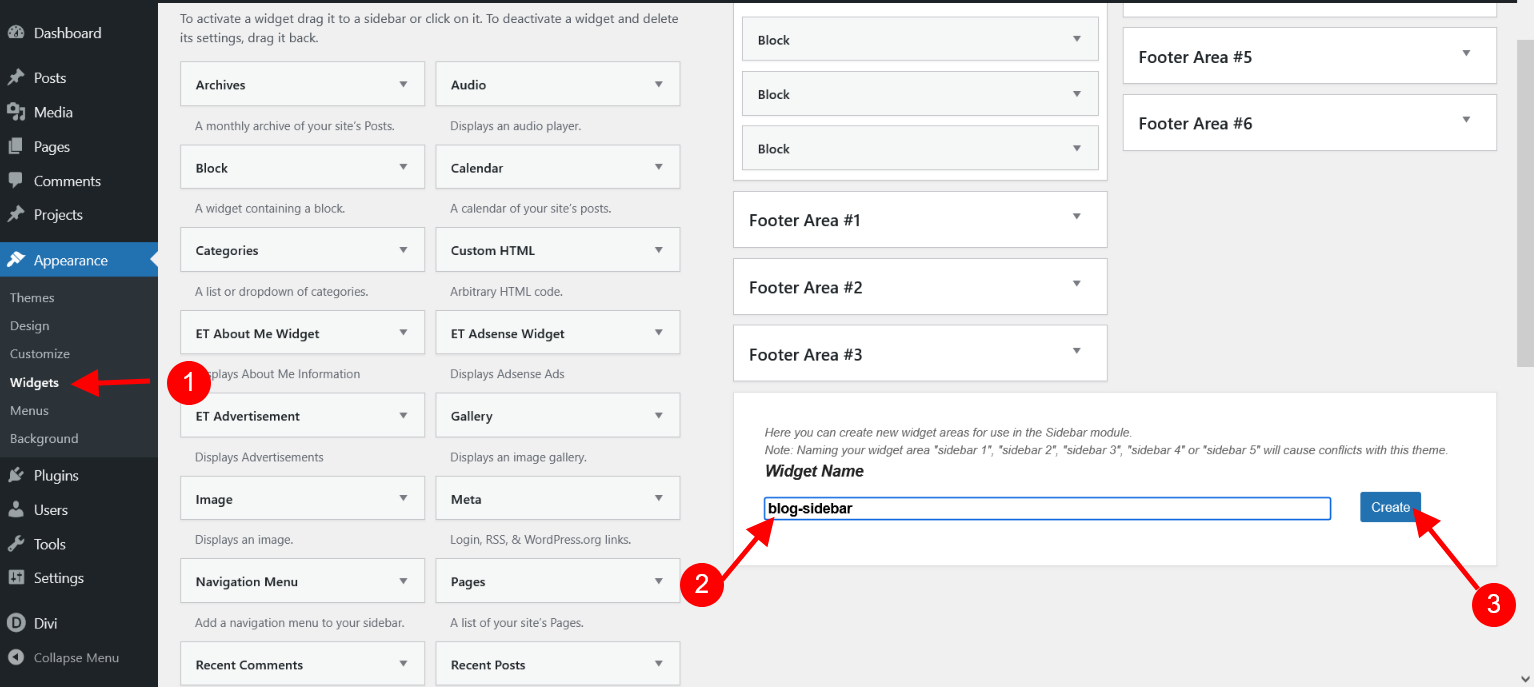
Once you create page refresh and see.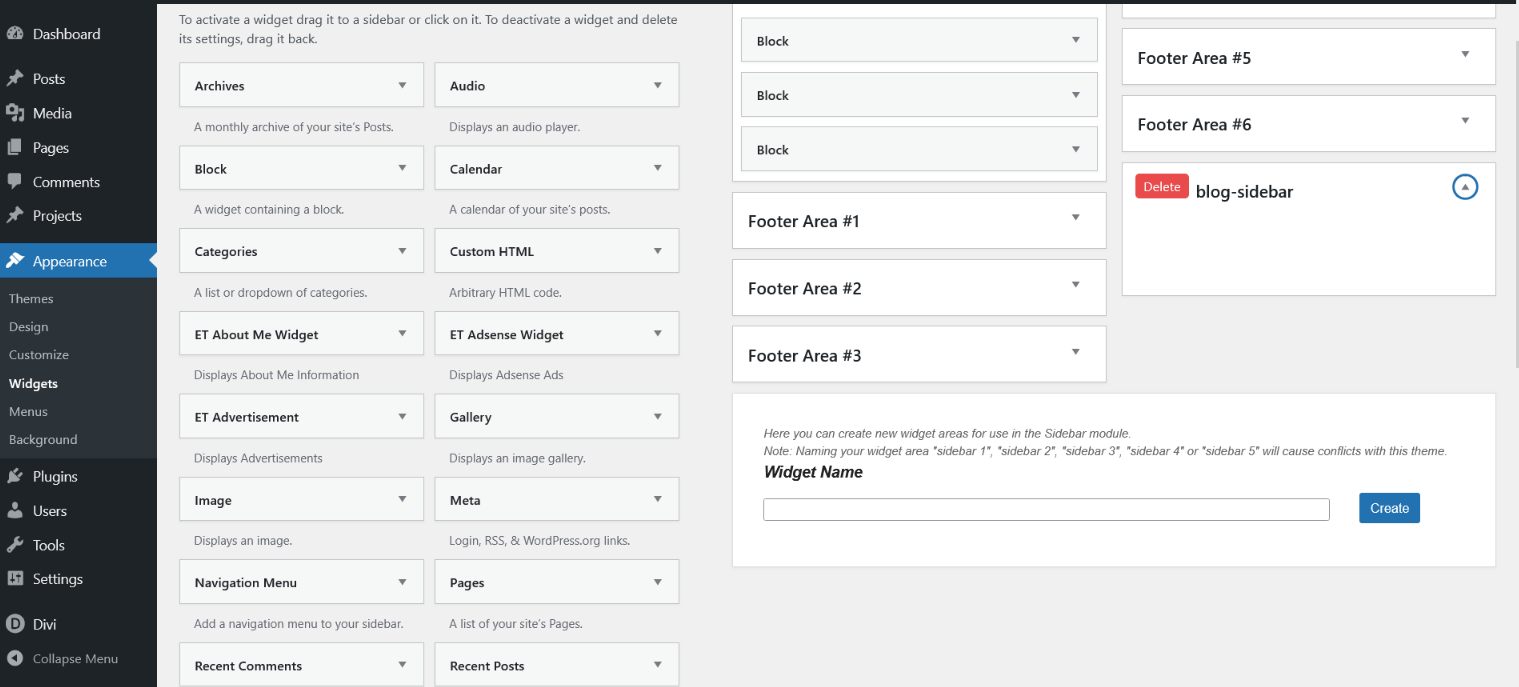
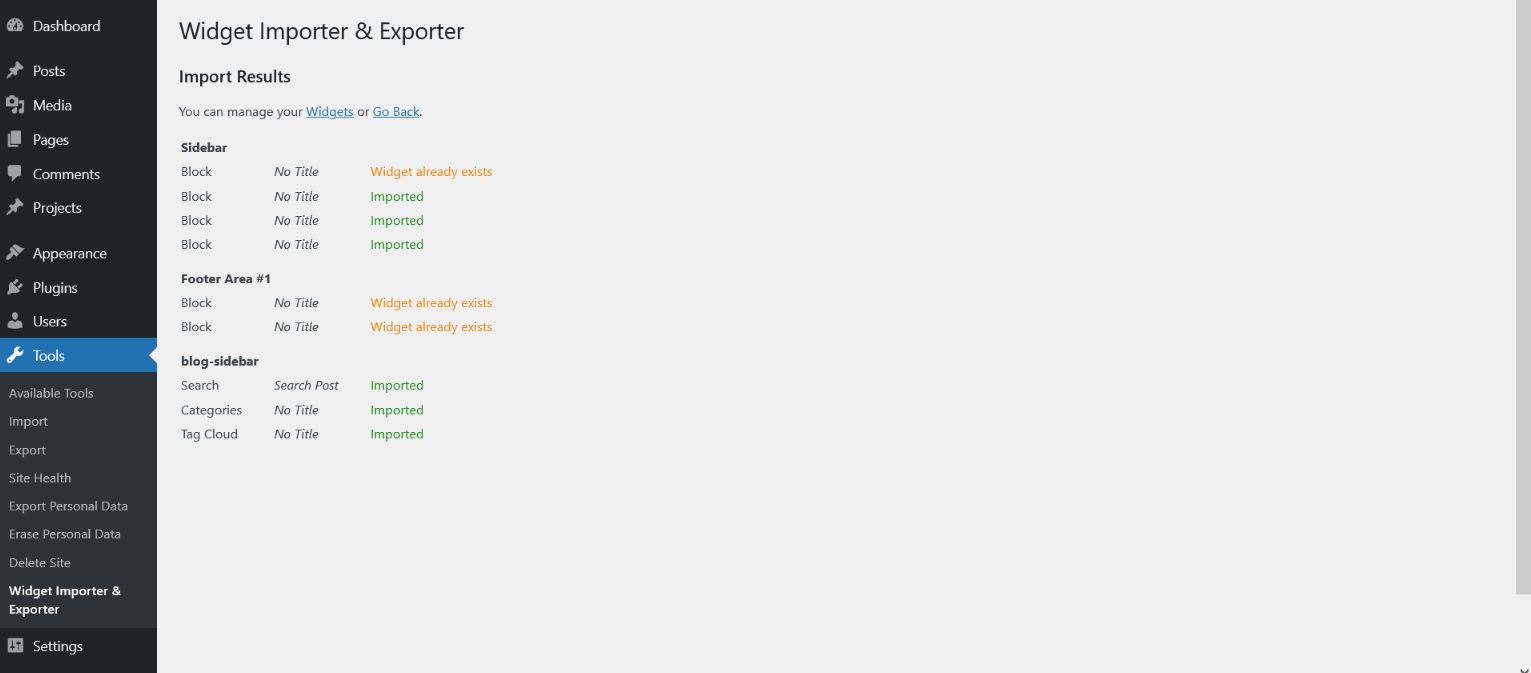
Now import "divi-warehouse-layout-widgets.wie" file
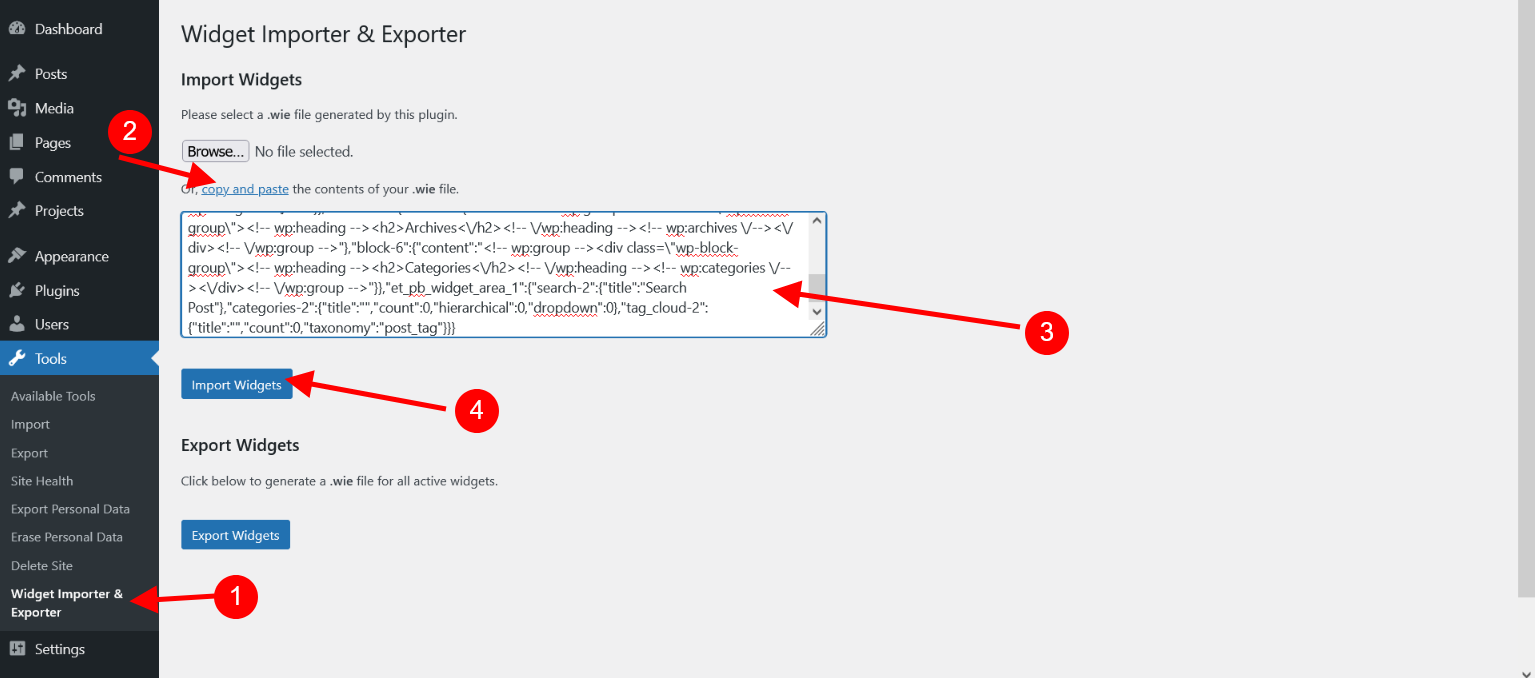
Go to Tools -> Widget Importer & Exporter
if you face file support issue then you can follow below steop in image.
just open "divi-warehouse-layout-widgets.wie" file and copy code and paste.
Widget import process is done.
Step 8 #
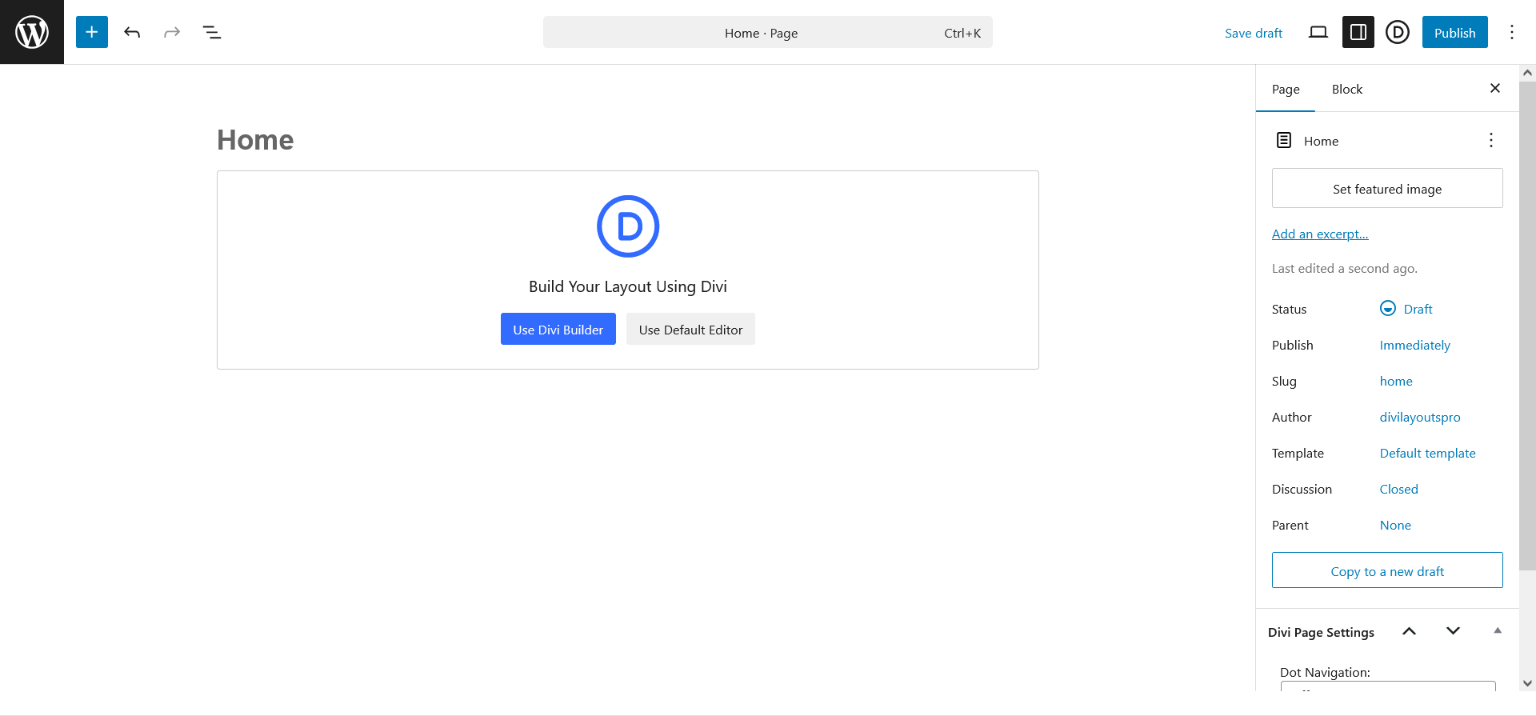
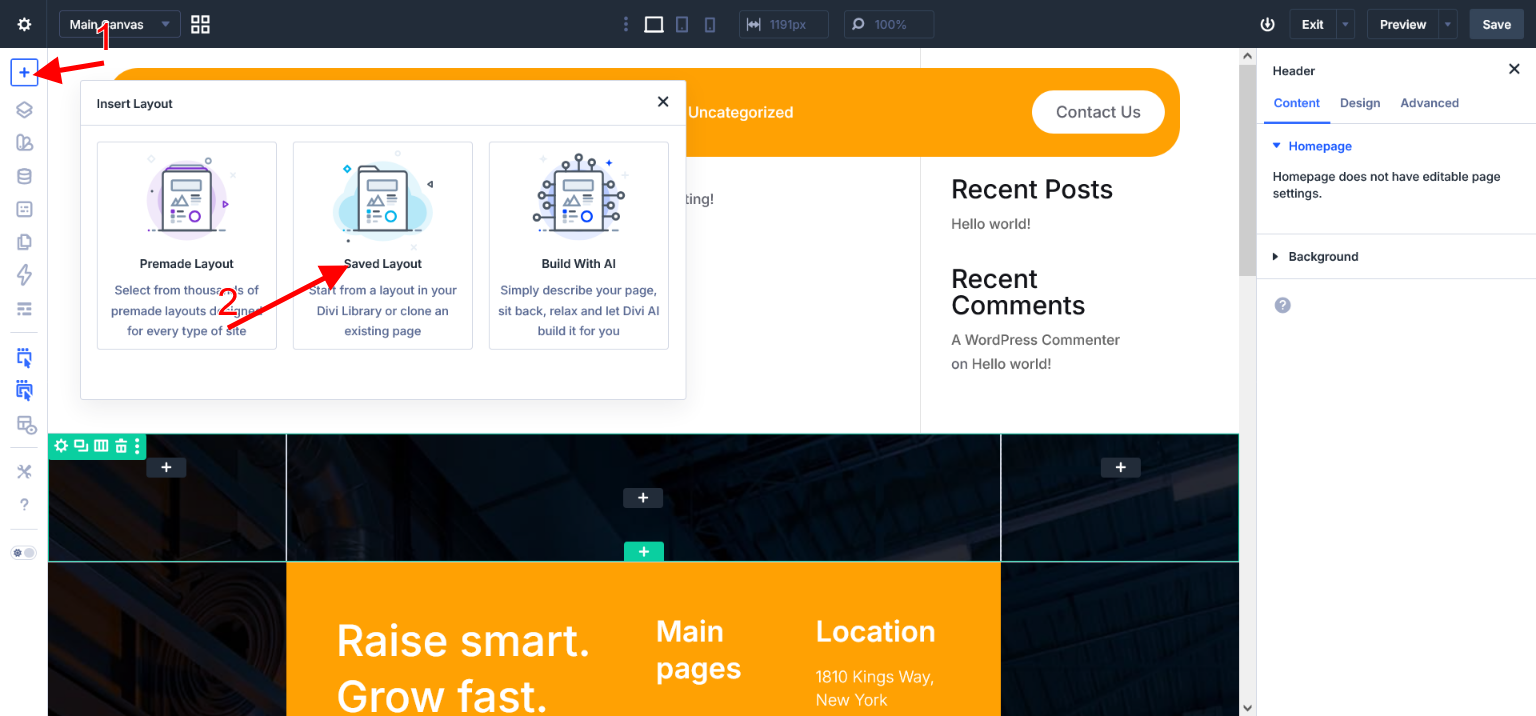
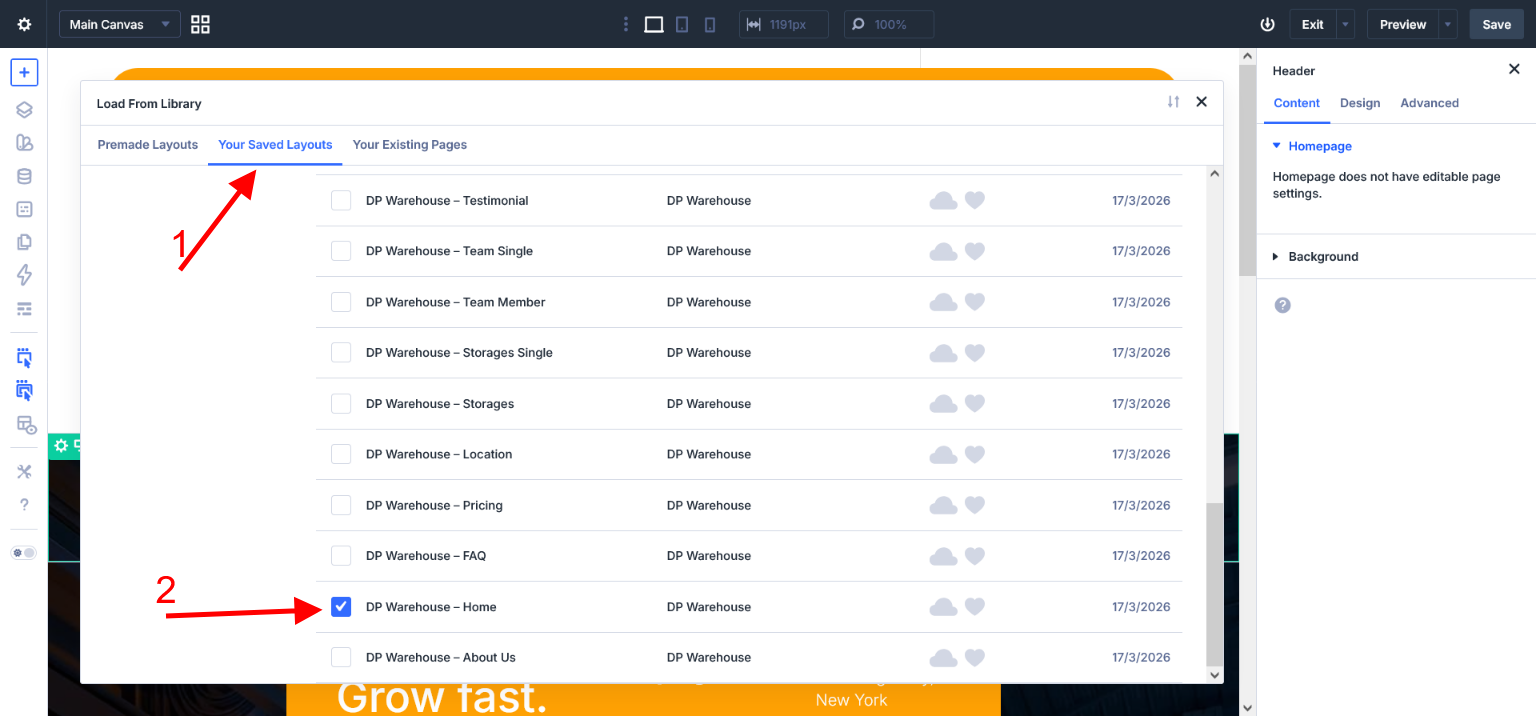
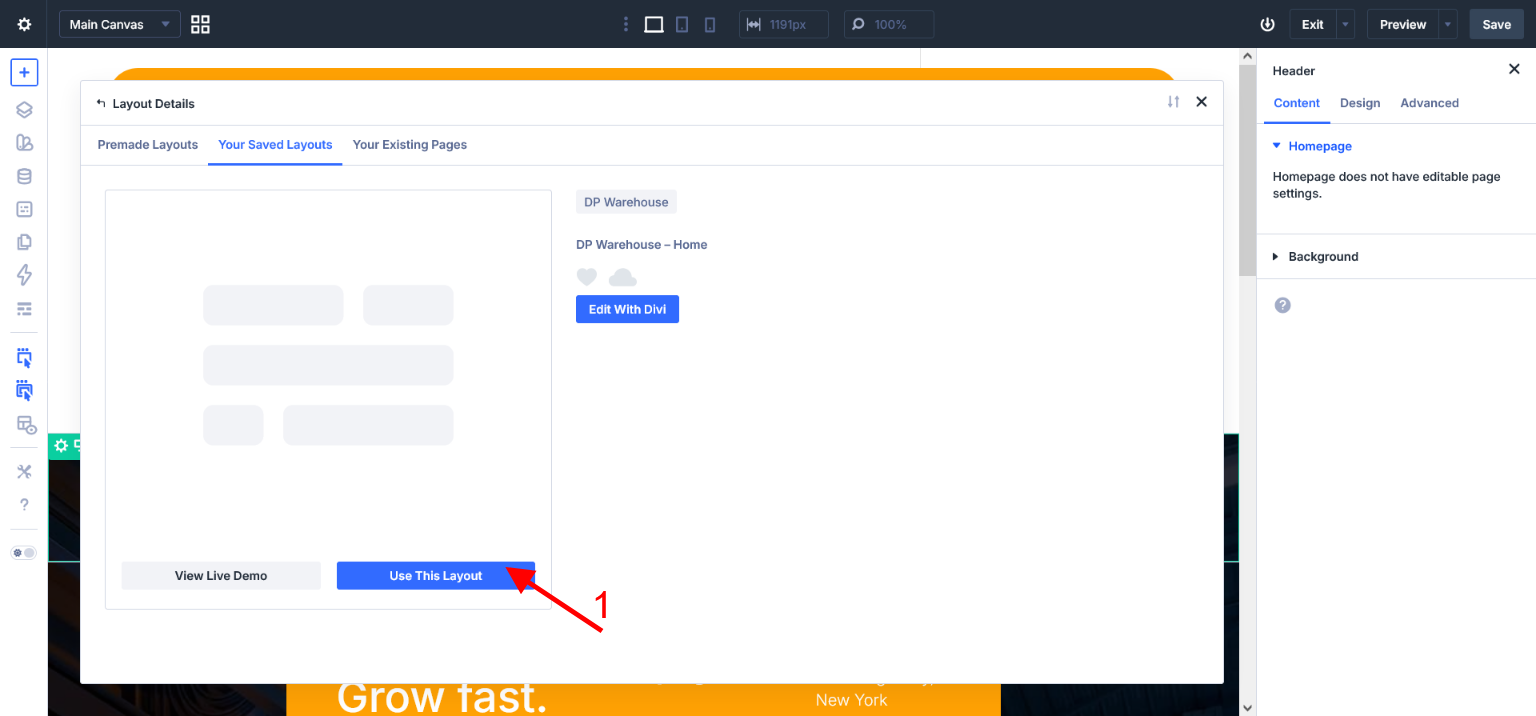
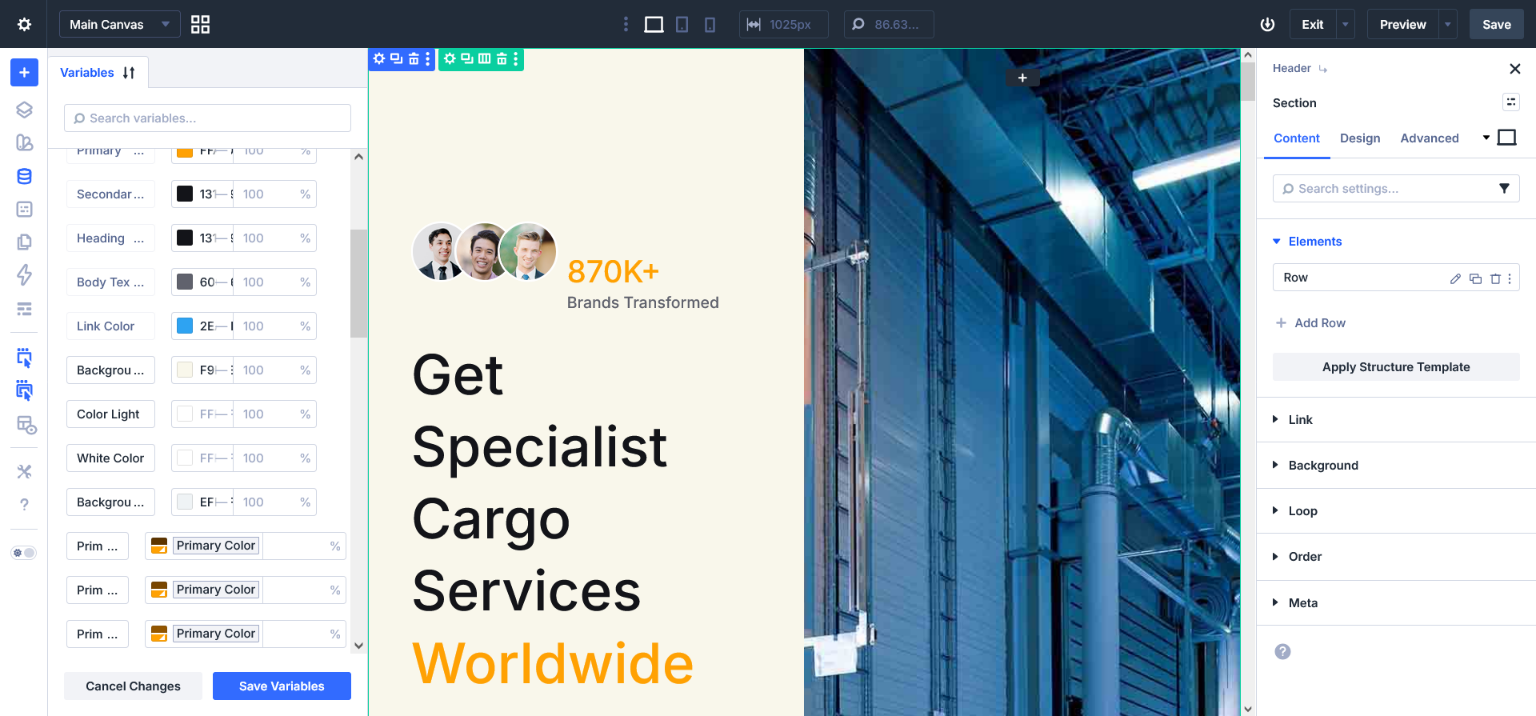
Go To Pages and Create Page -> Use Divi Builder
Step 9 #
For Popup
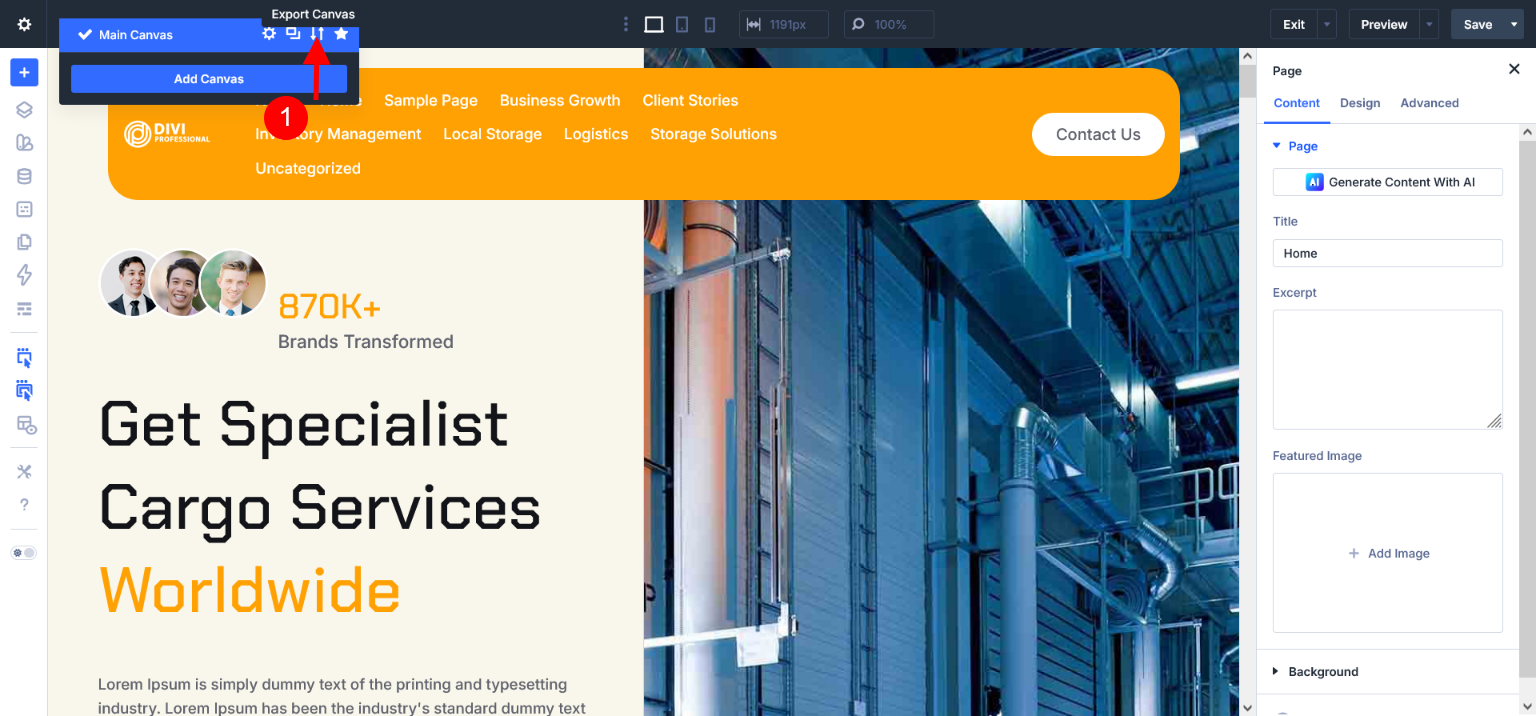
Note : if website have popup then you can see Canvas.json file. if file is not there that means website have no popup #
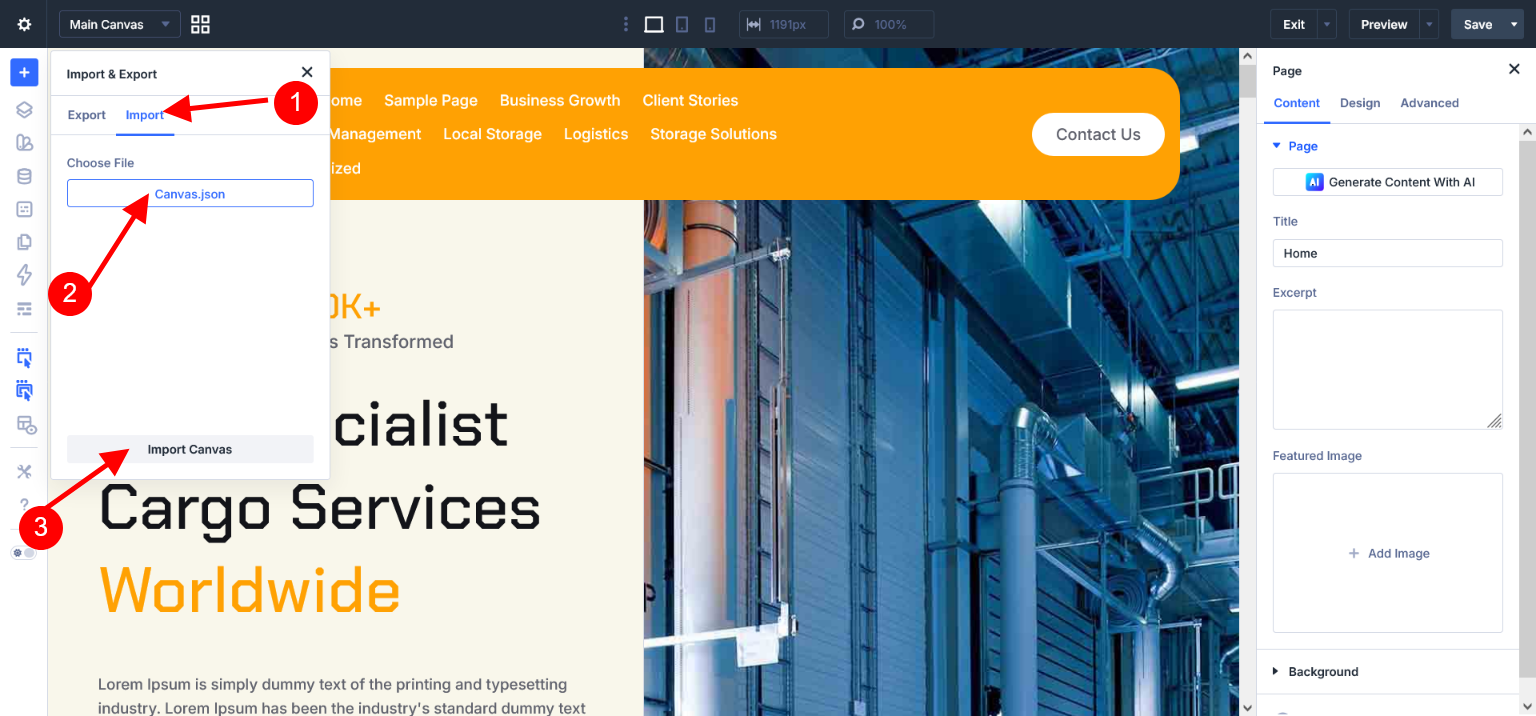
See Top Bar And Click on Canvas and import Canvas.json file
Go to Main Product Folder and see file
1. Canvas.json
ElectricHub - Divi Electric Vehicle Charging Layouts Pack #
Before Import Process Start Must be enable below settings
For Breakpoints Please Enable Tablet Wide
You can check Read Me - Installation Process.txt File Under Folder
CharityClub - Charity Divi Layouts Pack #
How to Work Events and Our Causes Page with Project CPT and Dynamic Data. #
We have Created 2 Main Category Event and Causes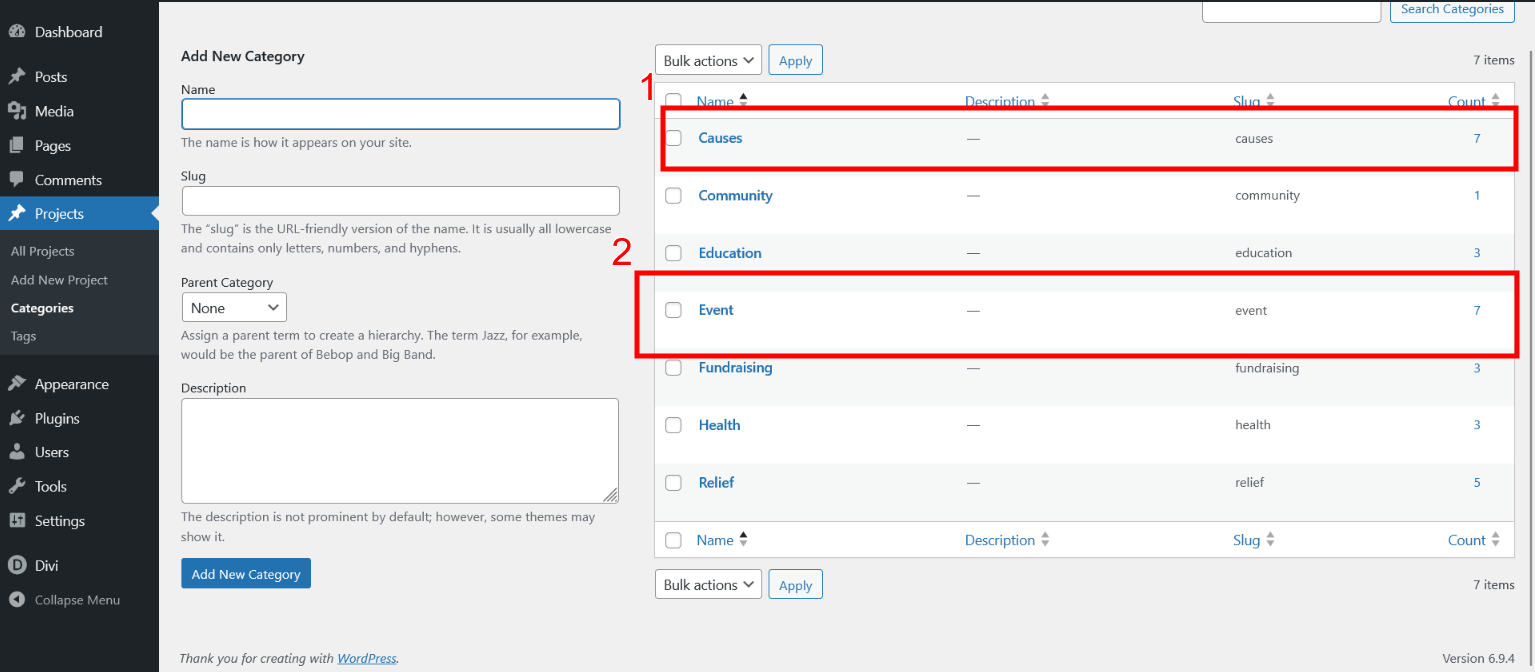
Each Project has assign Event or Causes category.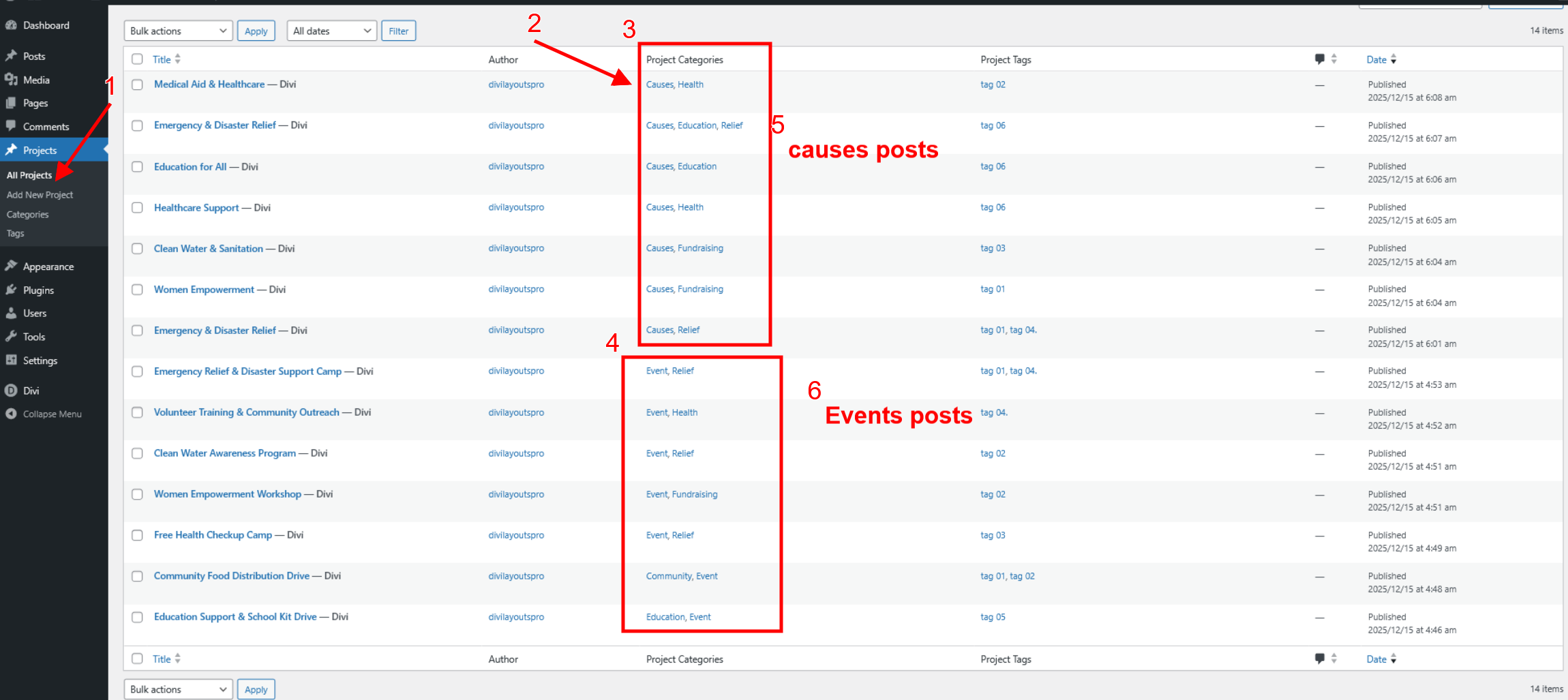
We have used WP default Custom Field
See For event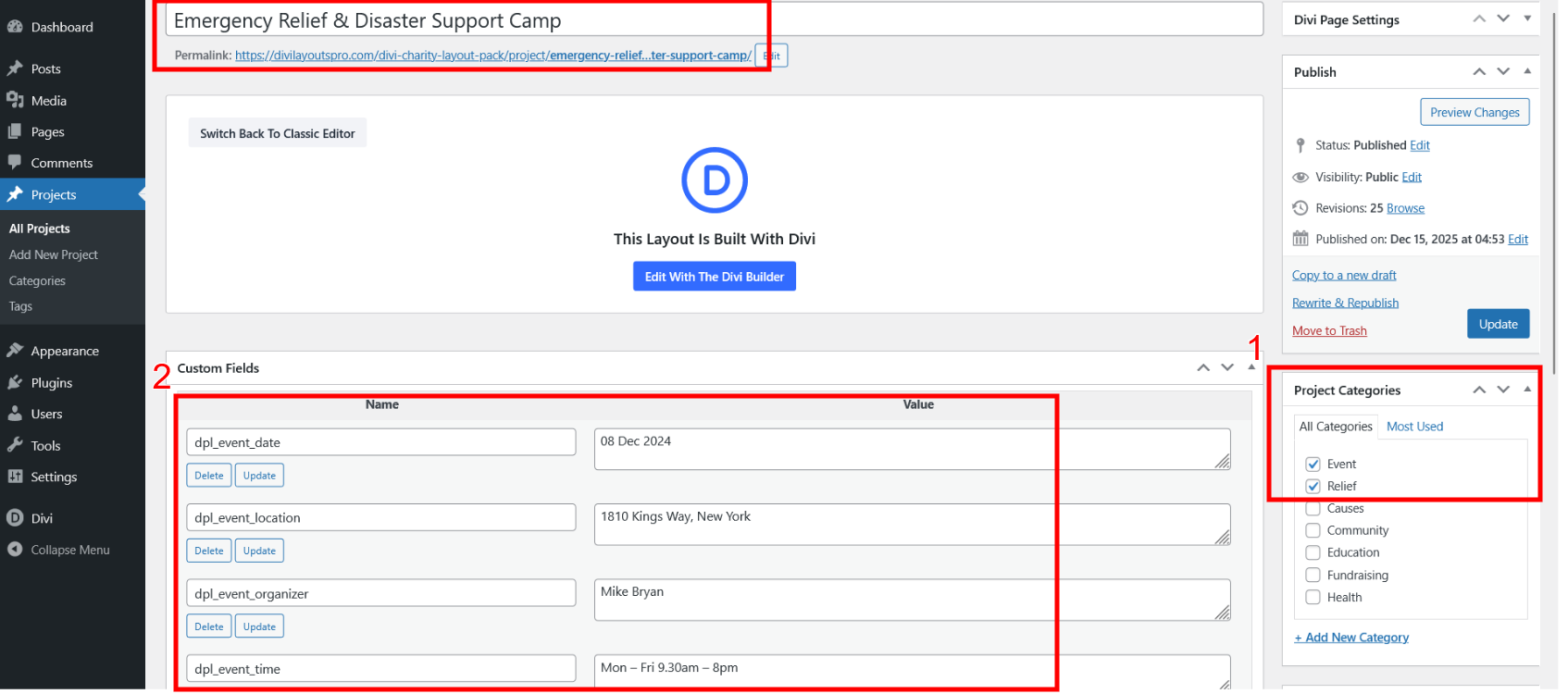
See For Causes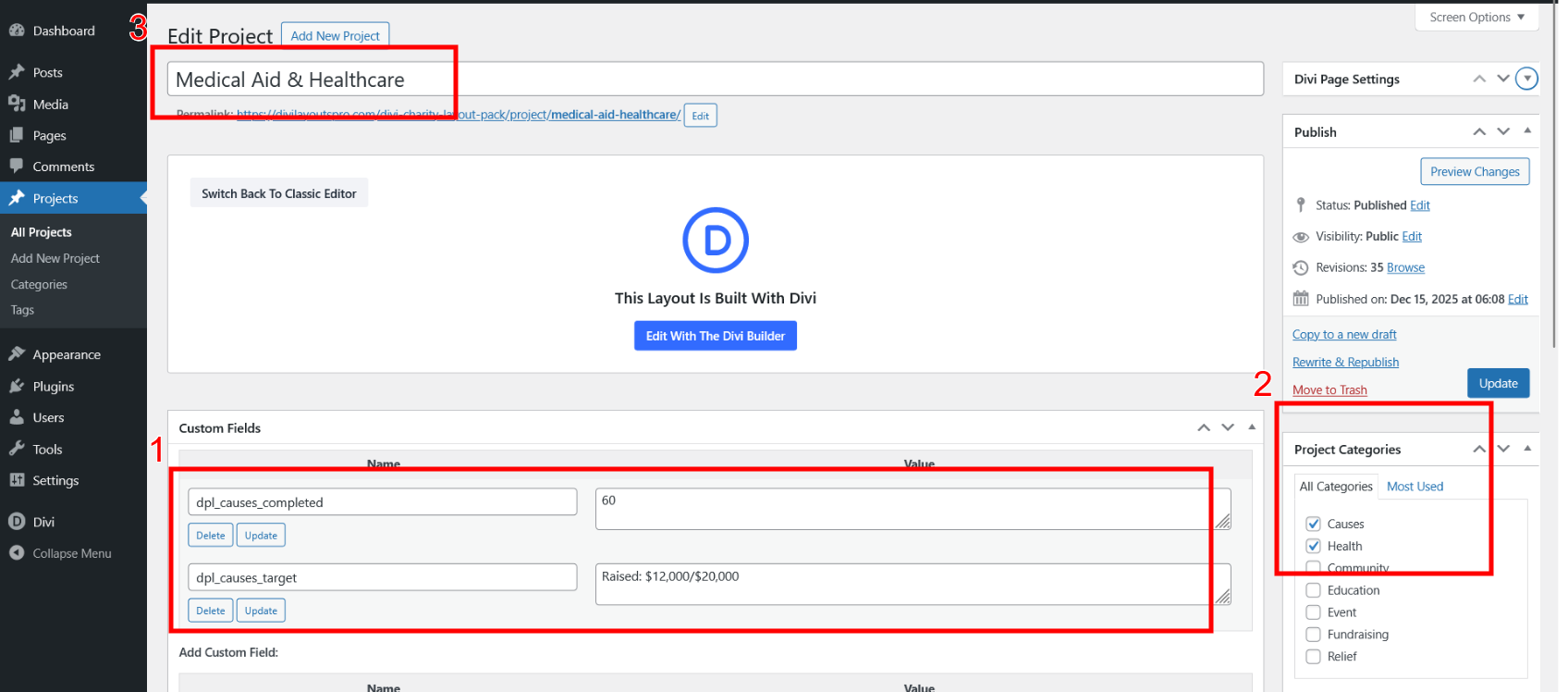
For Event Page #
Use Loop Builder - Dynamic way to display event list
see selected post type - projects and project category - event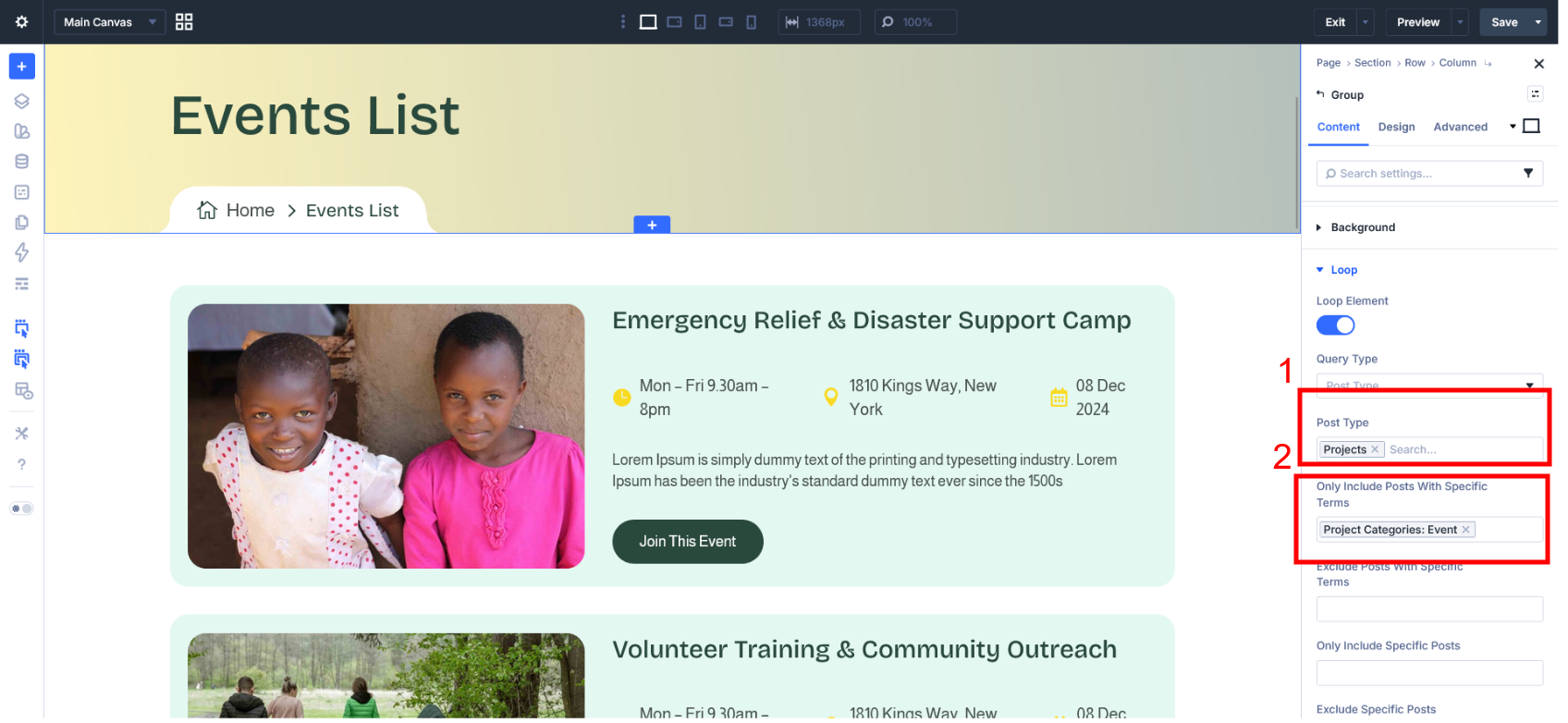
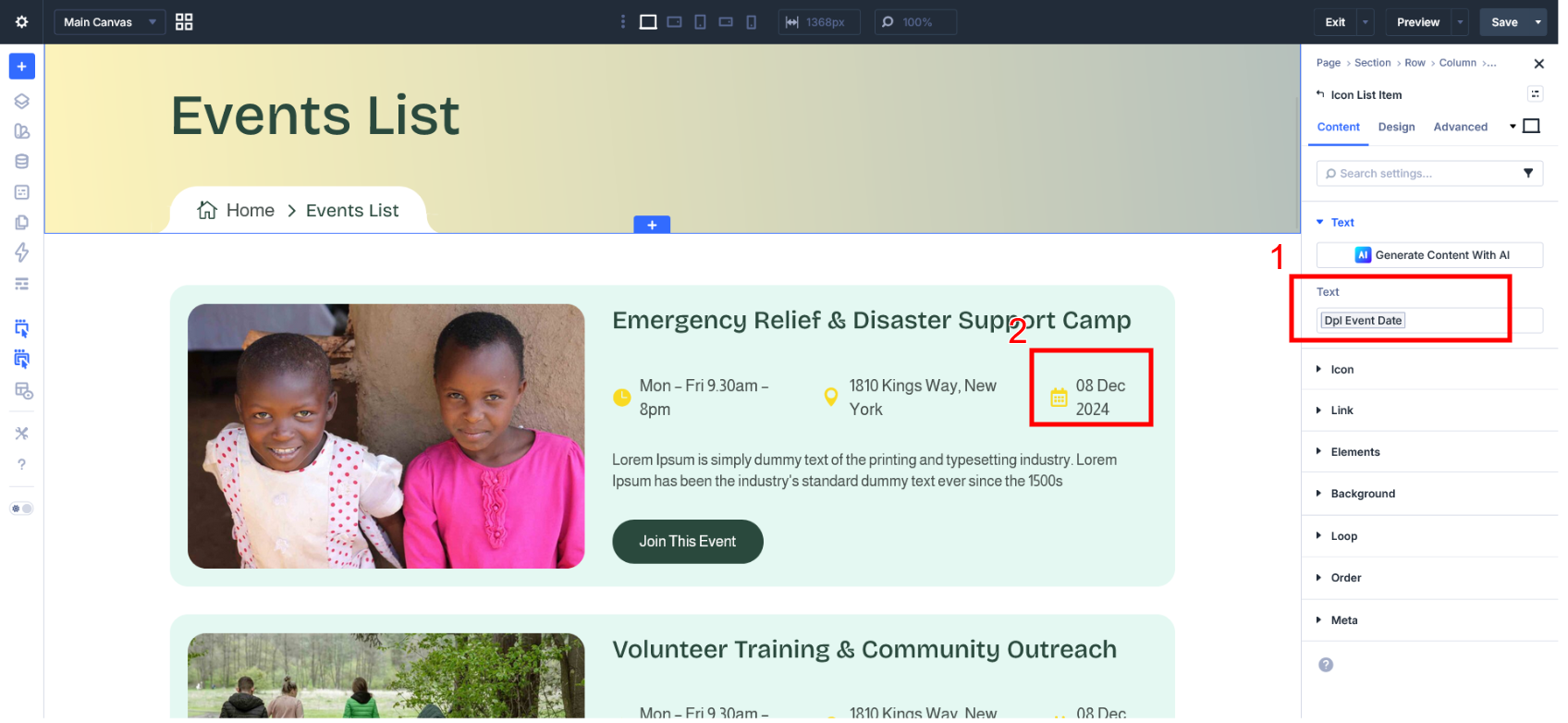
How to use custom field for event?
See for event time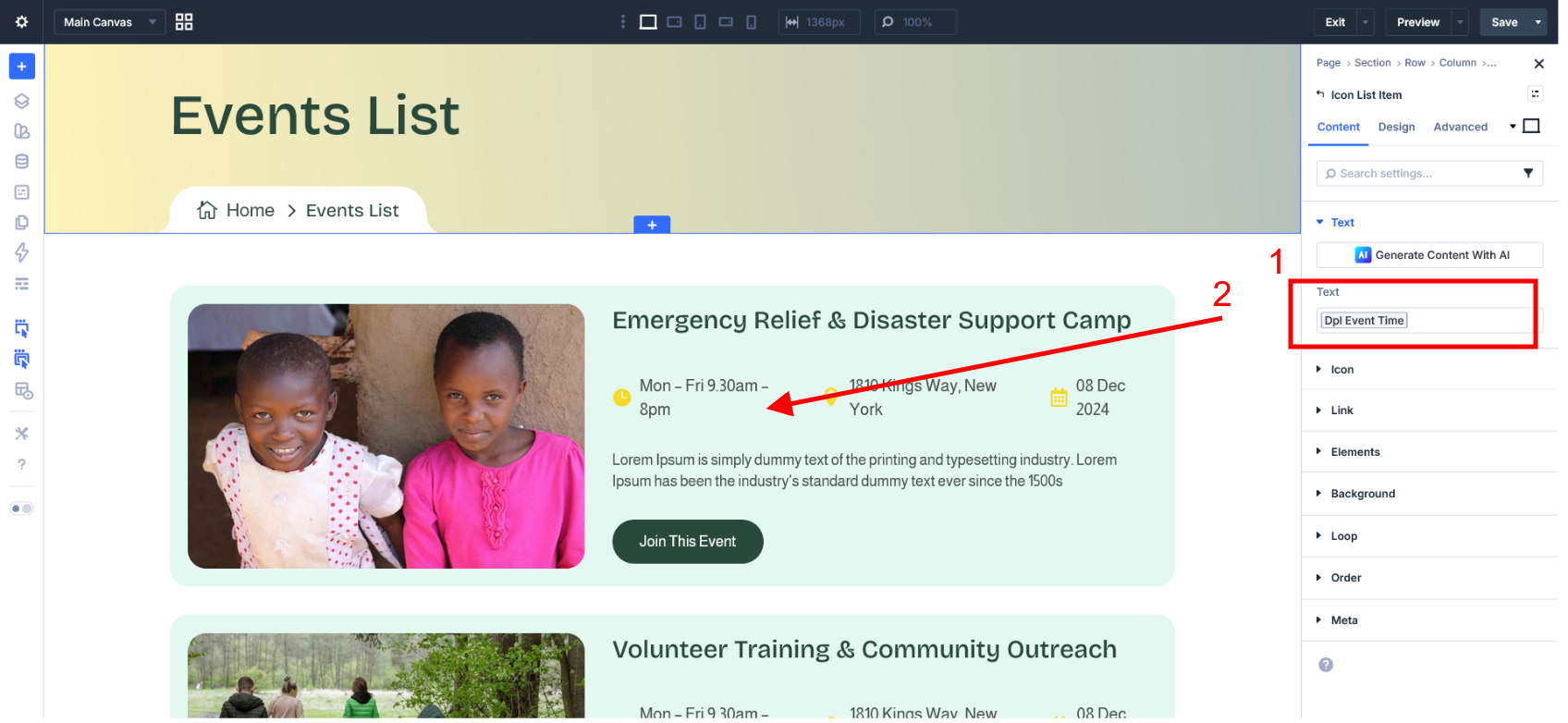
1. Go to Dynamic Icon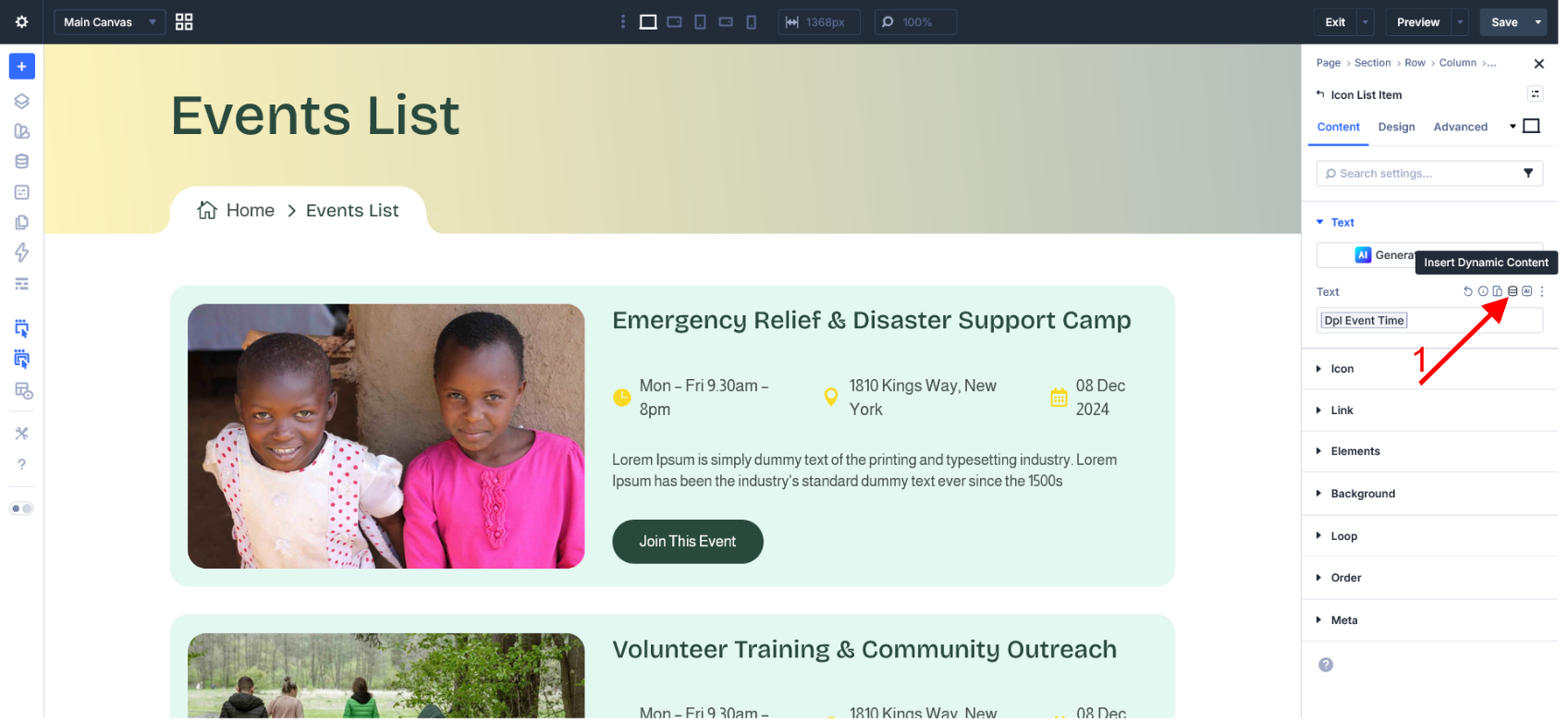
2. Once you click on dynamic icon then select Loop Post Custom Field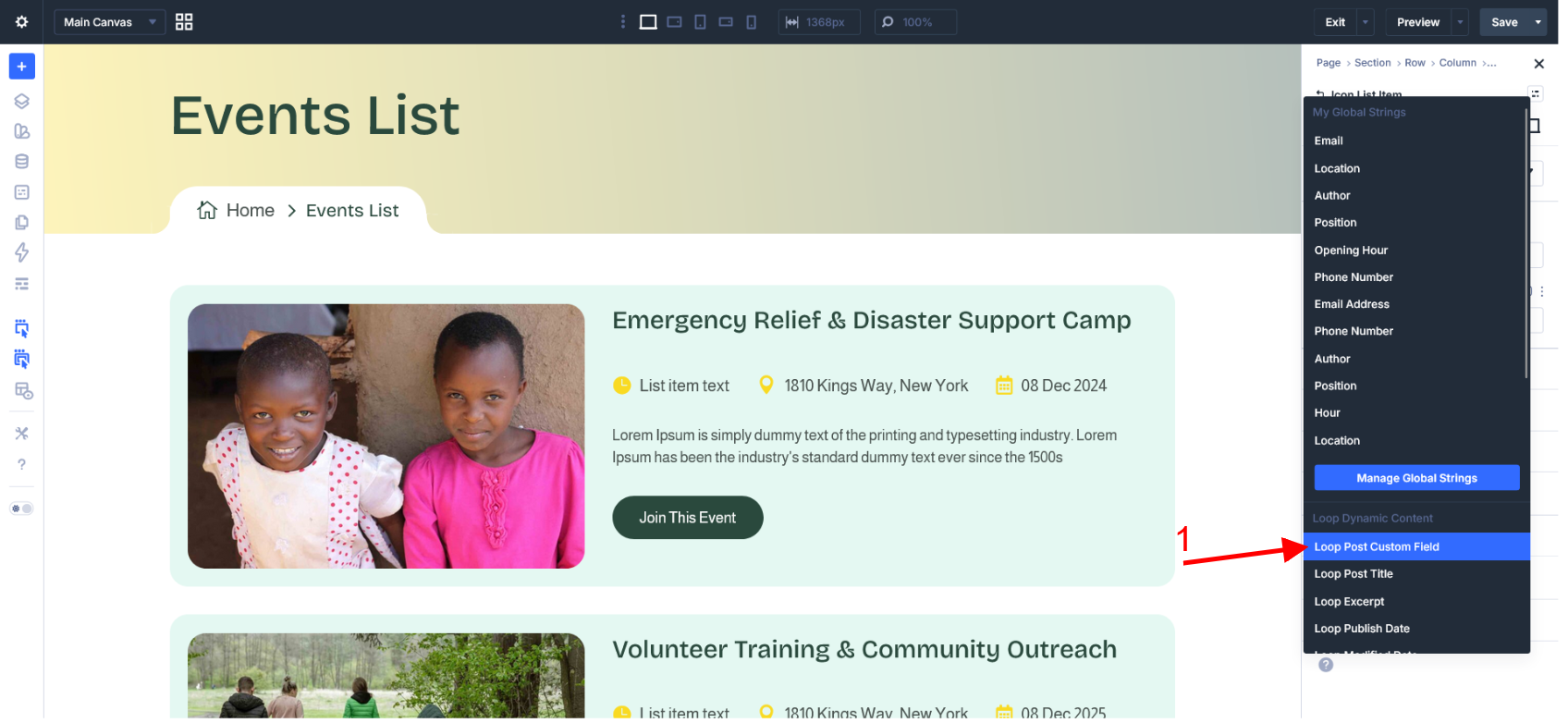
3. Once open then select meta key dpl_event_time and then save/apply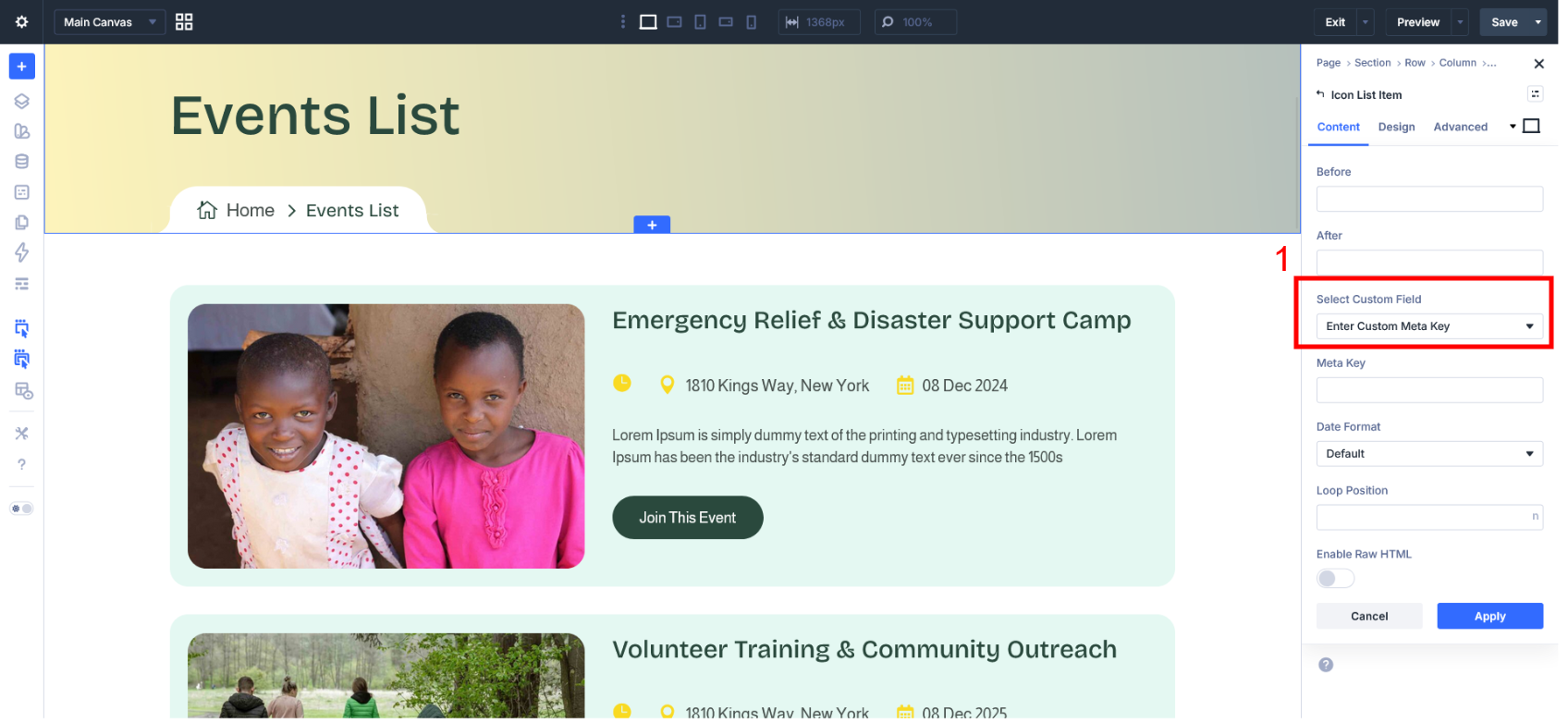
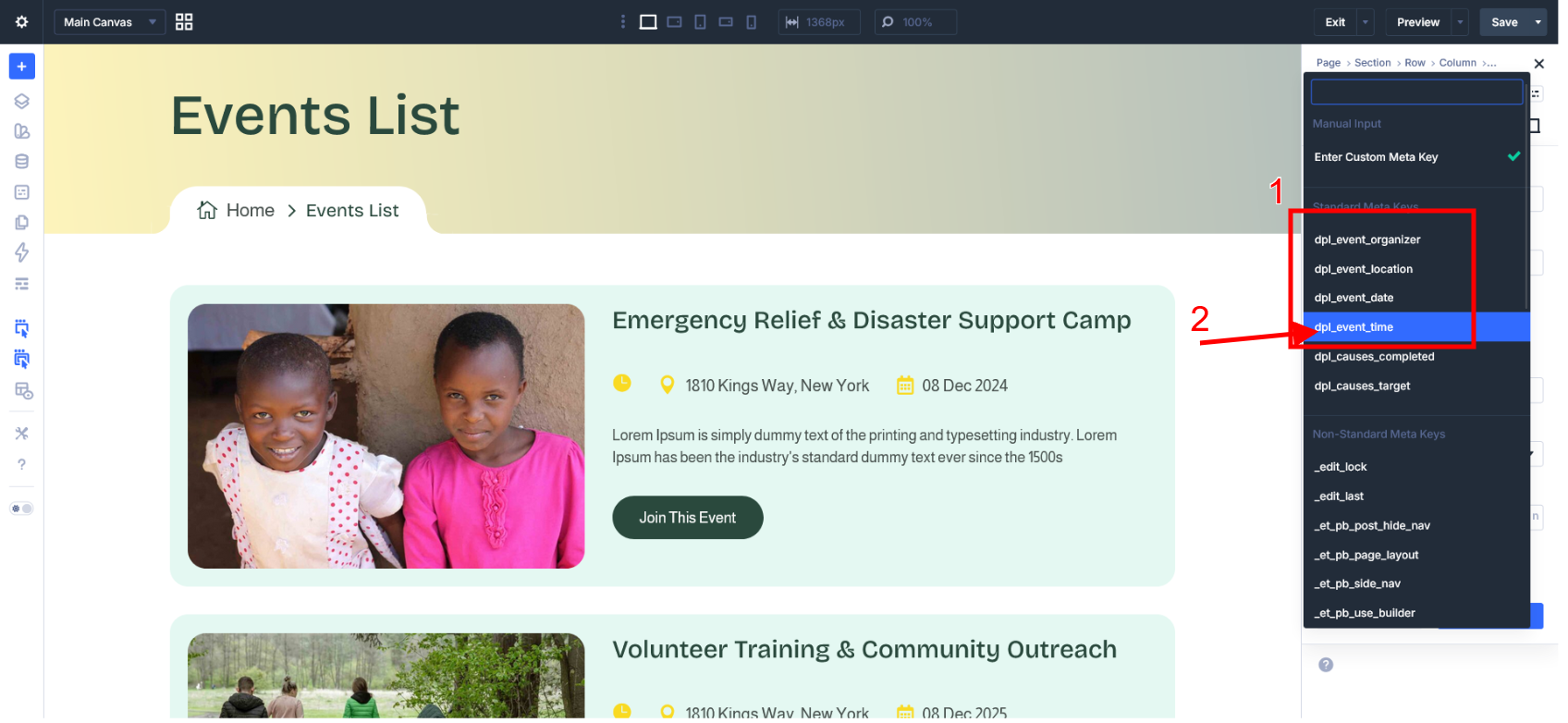
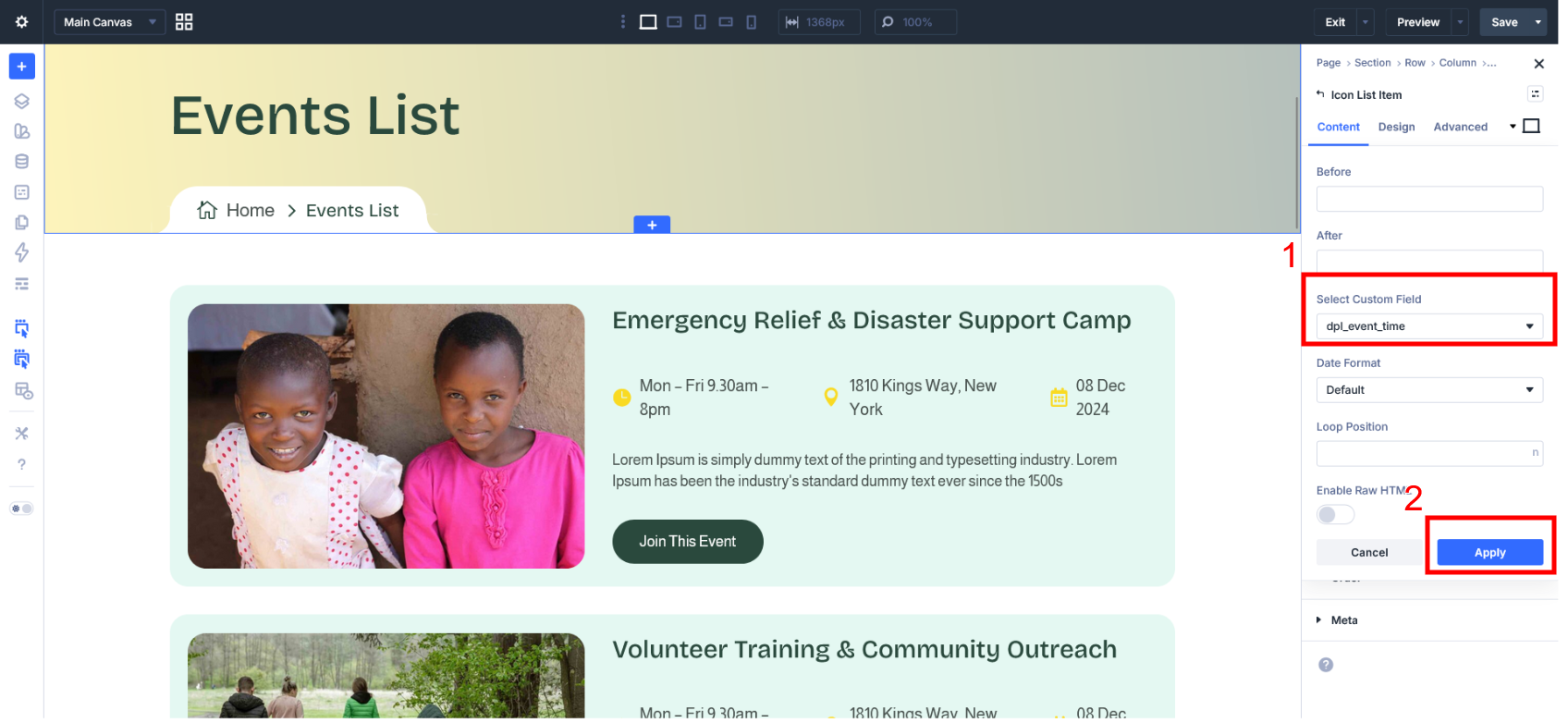
4. Same Process for other custom field like location,date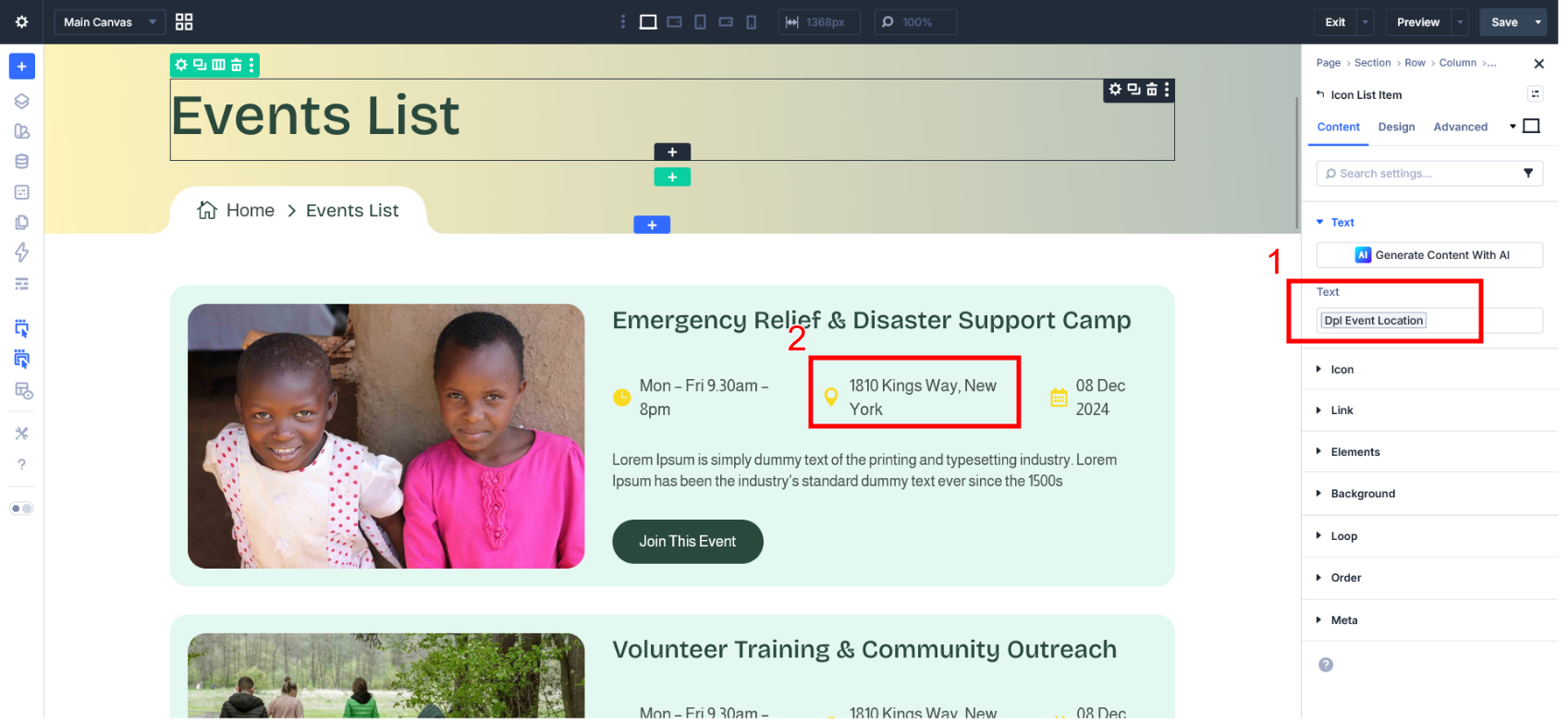
For Causes Page #
Use Loop Builder - Dynamic way to display causes list
see select post type - projects and project category - causes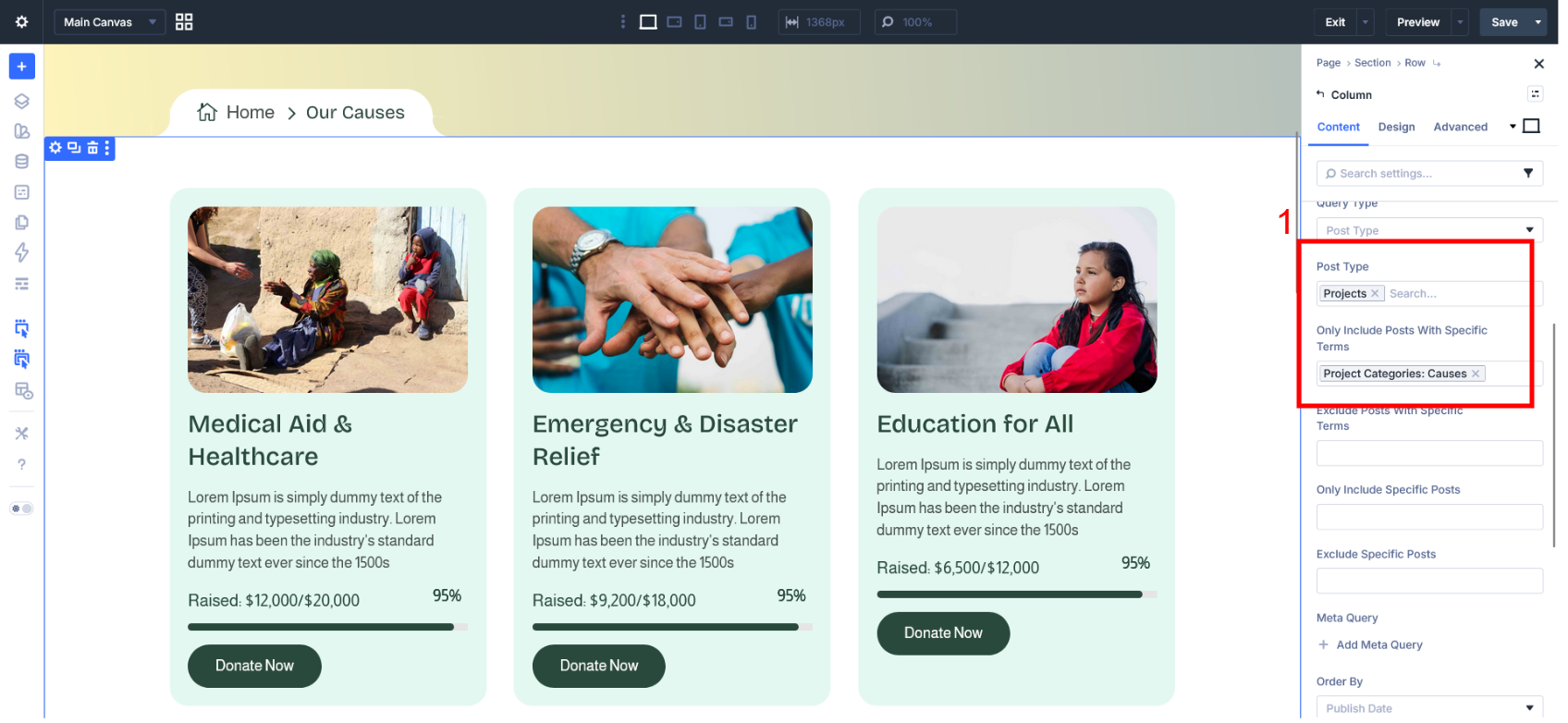
How to use custom field for causes?
See for causes target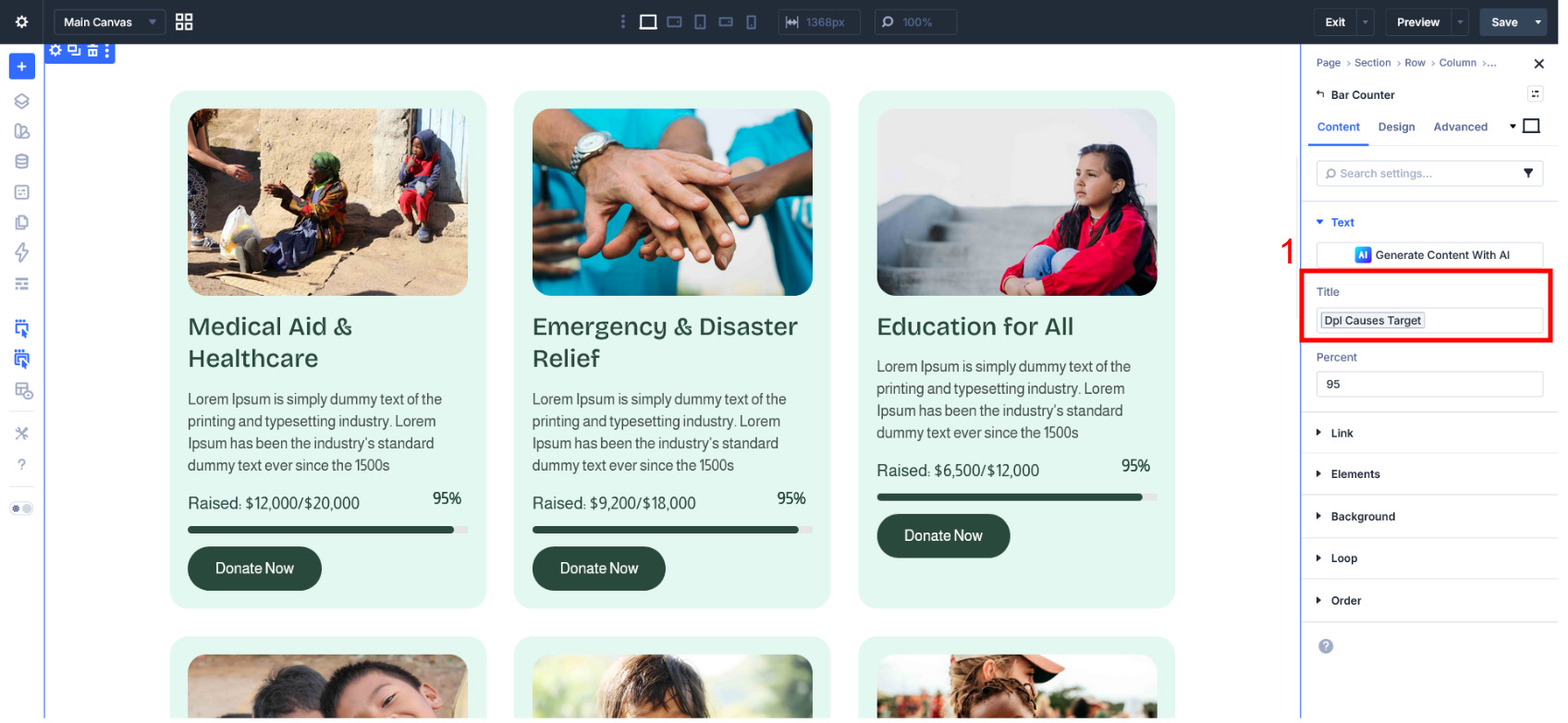
1. Go to Dynamic Icon
2. Once you click on dynamic icon then select Loop Post Custom Field
3. Once open then select meta key dpl_causes_target and then save/apply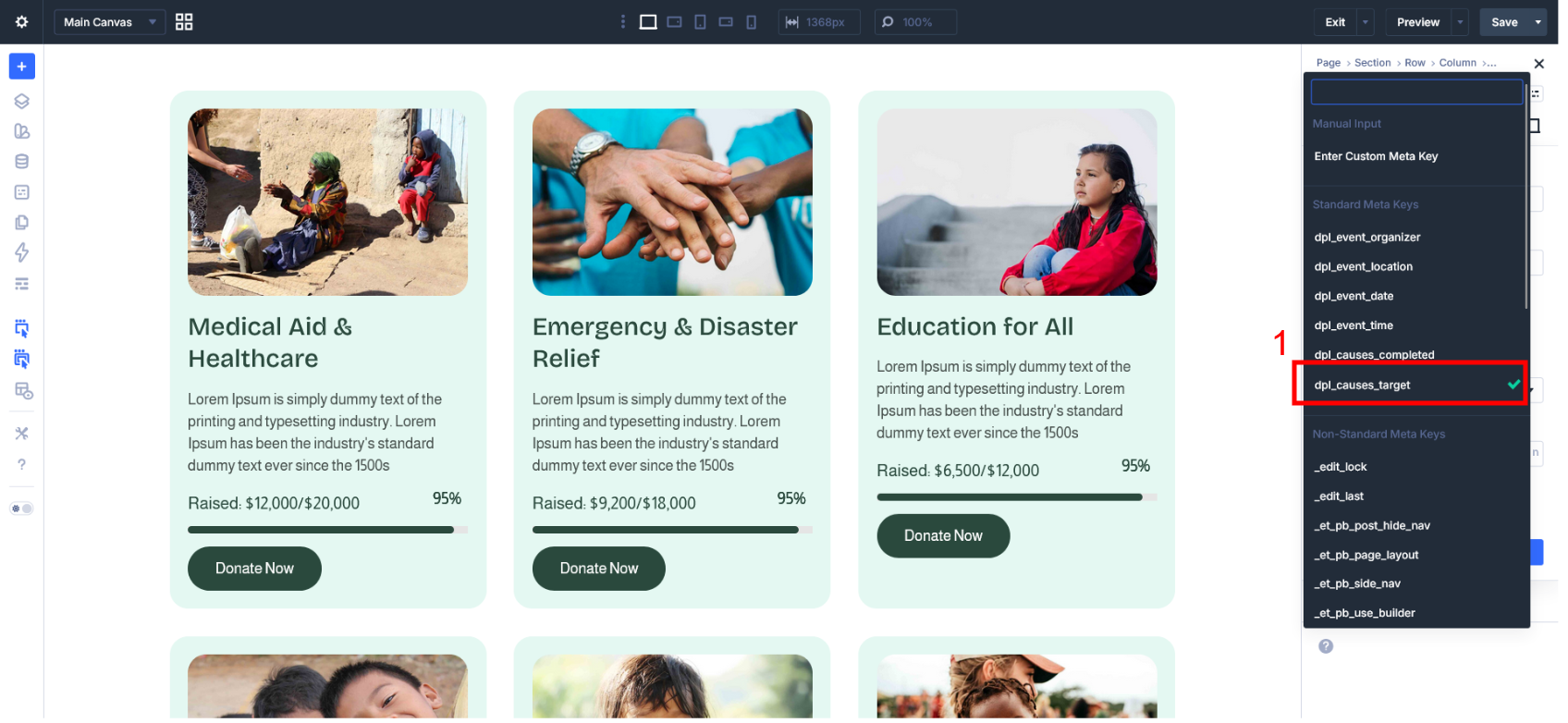
4. Same Process for other custom field


